

Access the new Australian Autodesk Construction Cloud!

You’ve heard about the new Autodesk Construction Cloud Server, hosted in Australia, but do you know how to access it? Do you want to know if accessing the Australian server will actually save you time?

A 3D illustration of Australia with a cloud computing symbol overlaying the map, highlighting the technological infrastructure and connectivity.

You’ve heard about the new Autodesk Construction Cloud Server, hosted in Australia, but do you know how to access it?  Do you want to know if accessing the Australian server will actually save you time?

Do you want to review the FAQ and Security.  , Read on!

First, Who can Access the server, and how?

BIM Collaborate Pro

If you have BIM Collaborate Pro, you will be using Workshared Cloud models, with multiple people accessing the Revit model, potentially from different locations.  

DOCS

If you have AEC Collections, BUT NO BIM Collaborate Pro subscription, you will be using Revit Cloud models, with a single person accessing the Revit model.  

But the good news is, you can create an Autodesk Construction Cloud Site for your company, on the Australian or US Server. 

The Downsides

If you already have Autodesk Construction Cloud on the US Server, you can transfer your existing project files to your Australian Server, but not your projects.  This means, if you need to maintain previous file versions, current issues or folder permissions, you will want to keep the project on the US Server, for now.   Bridging does not currently support different regions  

To learn more about Migrating Files using the Autodesk Replication Tool (ART) click the link below.

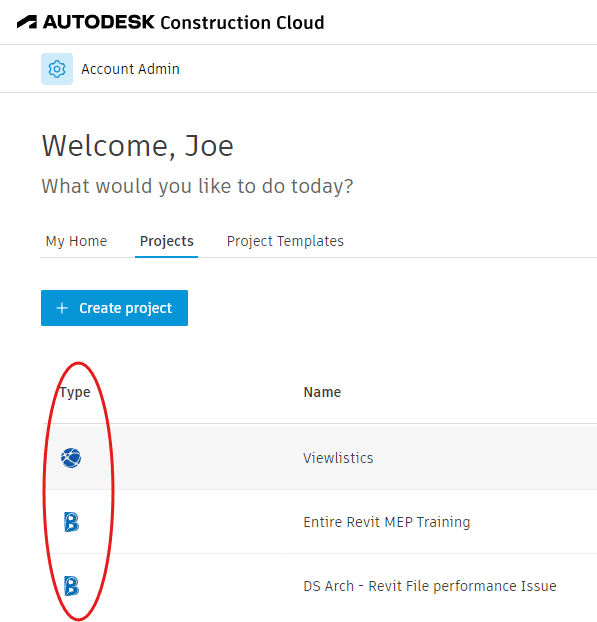
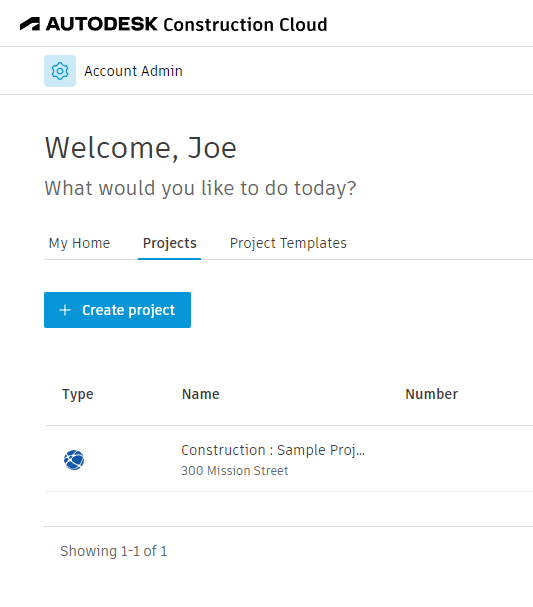
While your US Autodesk Construction Cloud > Home > Projects, will list your projects in BIM 360 and ACC, you will not see your projects hosted on the Australian Server, and vice versa.  Essentially this is not such a bad thing, if the reason you want to use the Australian server is for Data Sovereignty purposes.  

Review the Regional Data Storage FAQ

Projects listed on US server Site include BIM 360 projects and other companies projects, but not projects on the Australian Site.

Projects listed on Australian server Site only include projects on the Australian Server

Access the Autodesk Construction Cloud Australian Site

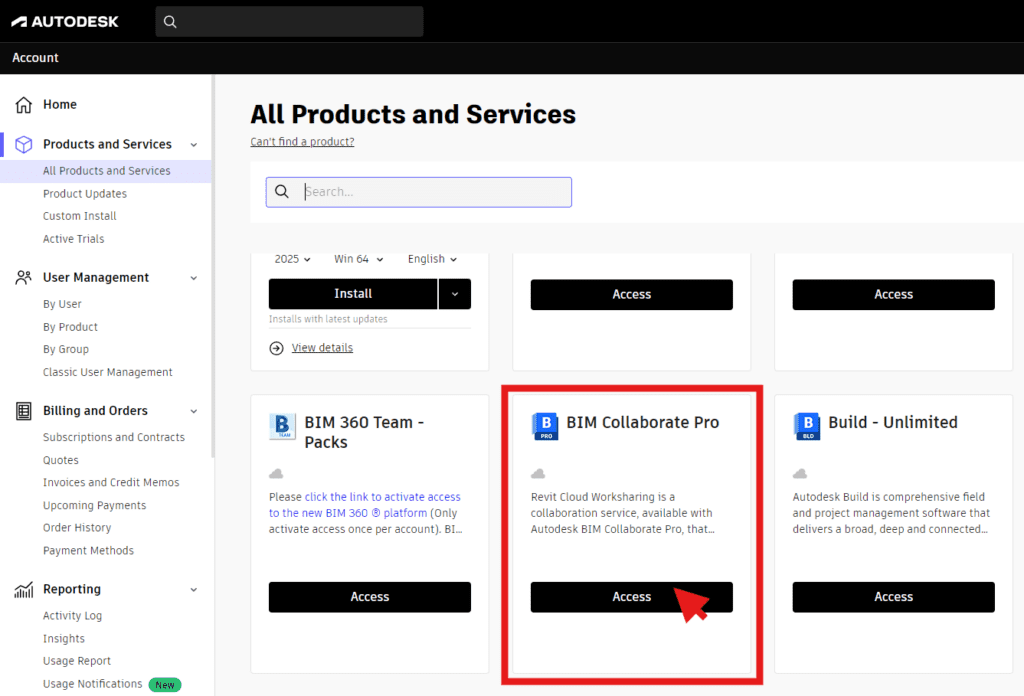
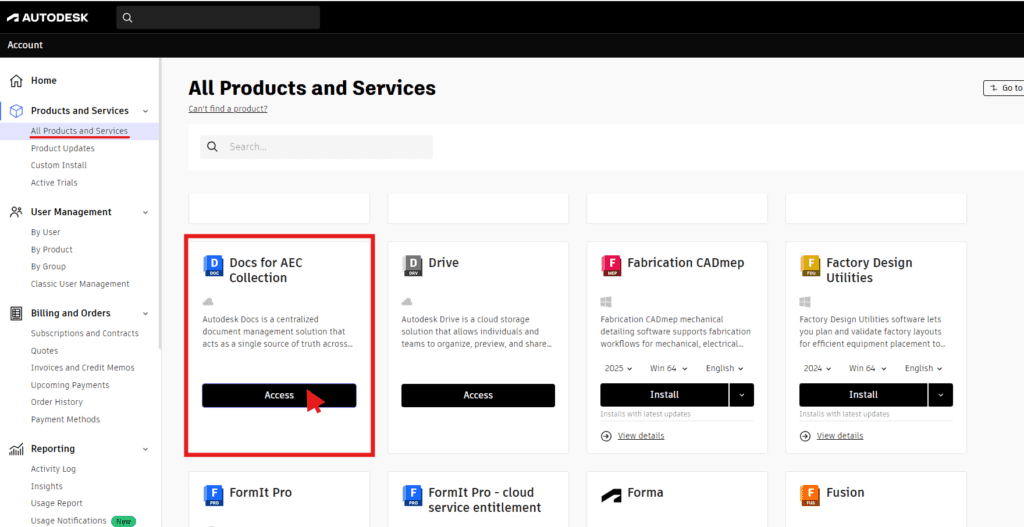
Once you are ready to create your new site, got to the Autodesk Manage portal > All Products and Services, here is a link.

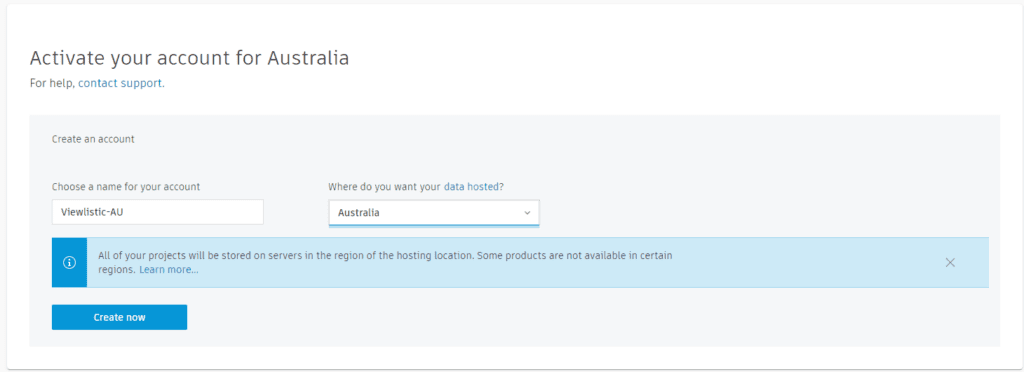
Then click Access, for either DOCS for AEC, or BIM Collaborate Pro.  In the following Window, choose a name for your account, and select Australia, for Where do you want you data hosted.

  1. Important Note, you will need to be an account admin.
  2. After you have created your site, follow the link in the welcome  email.
  3. We included AU as a suffix to our Australian Site, so as to easily identify it.
  4. Here is the address of the AU Site:  https://acc.apac.autodesk.com/projects 

The Speed Test

Finally, we simply uploaded (Collaborate in the Cloud) the same modestly sized, 128Mb Revit project, to both the US Site and to the New Australian Autodesk Construction Cloud Site.  

Upload times

US Site:  3 minutes 53 seconds

AUS Site:  2 minutes 37 seconds

Time Saved:  1 minute 16 Seconds

If you save 1/3 of the time you spend synchronising, over a year this is going to be a significant saving.

Need more information?

Still struggling with multiple Revit files?

RTV Drawing Manager for Autodesk Revit is a tool designed to manage and streamline workflows, particularly when working with multiple Revit files in a project. This can save significant amounts of time and reduce manual work in various aspects of a project.

Maximize Your Revit Efficiency with RTV Drawing Manager!

Hello, Viewlistic readers! If you’re knee-deep in Autodesk Revit projects, we’ve got some exciting news for you. Let’s dive right in.

What’s RTV Drawing Manager?
It’s like a Swiss Army Knife for your Revit projects! Imagine all your tedious tasks being handled smoothly in the background.

Here’s How It Can Revolutionize Your Workflow:

  • 📘 One-Stop Dashboard: See all your drawings in one place. No more hopping between files!
  • 🖨️ Click & Print: Batch print sets of drawings. Say goodbye to manual print jobs.
  • 🚀 Auto-Pilot Mode: Auto numbering, auto revisions, and even auto naming/exporting. Yep, it’s that smart!
  • 🔄 Stay Synced: Keeping data consistent across projects? Consider it done.
  • 💡 Design Focus: Spend less time managing and more time creating.

In short, RTV Drawing Manager takes the heavy lifting out of Revit projects. It’s a game-changer for any Revit enthusiast. So, why wait? Dive in and let tech do the work! (Details below)

Happy designing,
The Viewlistic Team

RTV Drawing Manager for Autodesk Revit is a tool designed to manage and streamline workflows, particularly when working with multiple Revit files in a project. This can save significant amounts of time and reduce manual work in various aspects of a project. Here are some ways in which RTV Drawing Manager can save you time:

  1. Centralized Management: The Drawing Manager offers a consolidated interface where you can see, review, and manage all your drawings from various Revit files. Instead of opening each file individually, you can streamline actions across multiple files.

  2.  

  3. Batch Printing: With RTV Drawing Manager, you can batch print sets of drawings from multiple Revit files. This reduces the need to open each file and print them individually.

  4.  

  5. Automated Sheet Numbering: Instead of manually renumbering sheets, RTV Drawing Manager can automatically renumber sheets for you based on criteria you set. This is especially useful for larger projects with many sheets.

  6.  

  7. Revision Management: The tool helps in automating and tracking revisions across multiple drawings. This means no more manually tracking which drawings have been revised or needing to cross-check various revision numbers across files.

  8.  

  9. Document Transmittal: RTV Drawing Manager can automatically generate document transmittals, saving you the time of creating these manually.

  10.  

  11. Sheet Issue Records: The tool can create and manage a record of sheets that have been issued. This is essential for tracking and project management.

  12.  

  13. Sheet and Project Data Synchronization: Instead of manually updating sheet or project data across multiple files, RTV Drawing Manager can synchronize this data for you.

  14.  

  15. Automatic Naming and Exporting: RTV Drawing Manager can automate the naming and exporting of files, which can be a massive time-saver when dealing with numerous files or versions.

  16.  

  17. Issue and Mark-up Management: The Drawing Manager also provides tools for issue and mark-up management, centralizing the feedback and corrections process, and ensuring you don’t overlook any notes or changes.

  18.  

  19. Template Management: For those frequently starting new projects or needing consistent sheet setups, RTV Drawing Manager provides template management. This ensures that every project starts with the same settings, sheets, and setups, reducing the manual setup time for each new project.

  20.  

  21. User-friendly Interface: Its intuitive interface reduces the learning curve and makes it easy for users to access and utilize its features.

  22.  

  23. Integration with Revit: Being directly integrated with Revit means there’s no need for complex export or import processes. This tight integration ensures consistency and efficiency.

  24.  

In essence, RTV Drawing Manager takes many of the manual, time-consuming tasks related to managing multiple drawings in Revit and automates or streamlines them. The cumulative time savings across a project can be significant, allowing teams to focus more on design and problem-solving rather than administrative tasks.

Streamline BIM Project Management

With a cloud-based solution like BIM Collab Pro, you’ll never have to worry about version control again. It’s like magic! And no more trying to remember which local drive or server you saved the latest version of the project to.

Are you tired of handling your Autodesk Revit designs using traditional methods that involve local servers and hard drives? Using a cloud-based tool like BIM Collab Pro can be a game-changer! Moving your data to the cloud frees you from manual data merging and version control hassles, while also enabling your team members to collaborate on the same project regardless of their geographical location. Furthermore, your data is safe and protected with BIM Collab Pro. By shifting to a cloud-based solution, you can save a considerable amount on server upgrades and maintenance costs. You only pay for what you use! With BIM Collab Pro, you can say goodbye to version control and file sharing issues that lead to wasted time and effort, and increase your team’s efficiency and productivity. Remember to secure your files with timely backups to avoid data loss. Try BIM Collab Pro and experience the benefits of a cloud-based solution today!

Managing Versions on BIM Collab Pro

Comparing Versions: 3 Ways

Better Markup Tools in BIM Collab Pro

These Markup tools provide a quick and efficient way to communicate design intent, coordinate changes, and track project progress. Whether you’re an architect, engineer, contractor, or owner, the benefits of these tools are clear: they streamline your workflow, reduce errors and rework, and ultimately help you deliver projects faster and with greater accuracy.

Autodesk BIM Collab Pro has a set of Markup tools that will change the way teams collaborate on BIM projects. These tools allow for easier and a direct way to mark up 2D and 3D models with annotations, measurements, and comments, without the need for any additional external software.

The Markup tools provide a quick and efficient way to communicate design intent, coordinate changes, and track project progress. Whether you’re an architect, engineer, contractor, or owner, the benefits of these tools are clear.

The Markup tools make it easier to collaborate with team members, without the need to switch between multiple software applications.

Overall, Autodesk BIM Collab Pro’s Markup tools provide a significant benefit to project teams, enabling them to streamline collaboration, enhance communication, and increase accuracy. By using these tools, teams can ensure that everyone is working towards the same goals, reducing the potential for delays or errors, and ultimately delivering projects faster and with greater accuracy.

In conclusion, if you’re looking to enhance your collaboration and communication on BIM projects, Autodesk BIM Collab Pro’s Markup tools provide an efficient, effective, and user-friendly way to do so. Give them a try and experience the power of streamlined collaboration firsthand!

How to Survive Supply Chain Shortage

More than ever Architectural Practices have to consider supply chain shortages in skills and materials. This impact is enormous when viewed in the light of planning issues, extended time frames and costs overruns.

Building in a Post-COVID World: Adapting to Material and Skill Shortages

The COVID-19 pandemic has had a ripple effect on industries worldwide, and the architecture, engineering, and construction (AEC) industry is no exception. One of the biggest challenges we’re facing is a shortage of skilled workers and materials. This can be a real headache for architects who have designed their projects around specific products or skill sets.

Imagine this: you’ve meticulously planned and documented your project, only to find that the materials or expertise you need are suddenly unavailable. This can lead to delays, cost overruns, and a whole lot of frustration. It’s like ordering a gourmet pizza and getting a plain cheese one instead.

One of the tricky issues that can arise is a change in wall thickness. This might not sound like a big deal, but it can actually affect the overall size of your building. That means you might have to go back to the drawing board to make sure your design still complies with planning regulations.

So, what’s the solution? We believe it’s all about planning for the unexpected. When designing a building, it’s important to consider the possibility that certain materials or skills might not be available when construction time comes. One way to do this is to create “flex zones” in your design. For example, you could allow for external “wall zones” that can accommodate changes in wall thickness without affecting the overall layout of your building.

By thinking ahead and planning for flexibility, we can minimize the impact of these shortages and keep our projects on track. After all, in a world where change is the only constant, adaptability is the key to success.

HOW TO SURVIVE SUPPLY CHAIN SHORTAGE

More than ever in our architectural practice, we have to consider the issue of supply chain shortages both in skills and materials. The impact is enormous when considering planning issues, extended time frames and financial costs

ACTUALLY STARTING PLANNING

Joe Keogh, Director of Viewlistic, on the importance of planning and anticipating changes in your Revit project, but also for supply chain shortages becoming a real and frequent occurrence.

WHAT YOU CAN DO

Revit & Supply Chain Shortage, what you can do about it. Advice from Nathan Fenn Design Technology Specialist

REVISION TRACKING WITH BIM COLLAB PRO

Did you know you can track revisions in BIM Collab Pro? And retrieve previous versions. Nathan Fenn explains.

Manage Multiple Revit Files

Drawing Manager from RTV Tools may take away some of your pain.

RTV Tools is best known for its RTV Exporter for dealing with weekly document deliverables, allowing your to save presets for Sheets so it becomes a one button exercise (after your visual check). There are many other hidden gems in this Revit Plugin. 

If you have worked long enough on any project with Revit as your main modelling tool, there will be times when you wished some of these mind numbing tasks would just go away. Don’t you wish you could manage all your drawing sheets, your revisions, and transmittals in one place?

Drawing Manager from RTV Tools may take away some of your pain.

RTV Tools is best known for its RTV Exporter for dealing with weekly document deliverables, allowing your to save presets for Sheets so it becomes a one button exercise (after your visual check). There are many other hidden gems in this Revit Plugin. 

RTV Tools Drawing Manager can help streamline managing multiple Revit project files in one location. 

At it’s core is an SQL Database which adds a layer of “protection?” to the Revit database. You will need to Sync with the Revit Project file to commit changes made in Drawing Manager. Which is not a bad thing, allowing for some flexibility for reversing unintentional mistakes.

The other neat tools includes: Long complex numbering systems (which are unavoidable for infrastructure projects, health projects and defense projects..) Revision requirements for construction (with history reports) and Transmittals (that lets you work with complex numbering systems. To name a few.  If you find this is the space you are in why not have a chat with us.

Wish I could do that!
Manage multiple Revit files in one place.

Control Site Data with RECAP PRO

Our video blog looks at pointclouds for existing conditions and context survey. We look at some of the benefits in using pointclouds as part of your workflow.

The good (comforting?) news is that your AEC Collection includes RECAP PRO.

More and more we find ourselves working on projects where the fees are tight and the time frame for completing tasks shorter. So any tool that comes along and offers some modicum of hope is gladly received.  Hello Recap Pro!

Our video blog looks at pointclouds for existing conditions and context survey. We look at some of the benefits of using pointclouds as part of your workflow.

The good (comforting?) news is that your AEC Collection includes RECAP PRO. 

RECAP PRO has a number of functionalities that will help in the use of pointclouds. 

Asides from the ability to stitch together multiple scan files, multiple drone photograghs; RECAP PRO can be used to reduce the points per inch of your scan file, thus reducing file size and making it manageable for use in your work flow.

Or contact Guy Smithers, Joe Keogh or John Young at Viewlistic.com.au

We are happy to help.


AEC Collection: Control your Site Data with RECAP PRO

We look at the benefits of using pointclouds for existing conditions modelling. With RECAP PRO as part of your AEC Collection, it would be a missed opportunity not to use it as part of your workflow.

For more on RECAP PRO 2022 visit the following site: Introducing ReCap Pro 2022 – ReCap Blog (autodesk.com)

Revit Survey Levels: 4 easy steps

Moving from Autocad to Revit, this and the previous tutorial (Survey Files in Revit in 4 easy steps) is for you.

Survey Levels in Revit in 4 easy steps.

If you are moving from Autocad to Revit, this is for you. (refer previous tutorial Survey Files in Revit in 4 easy steps)

This is the second of a series of tutorials to help you setup your Revit Projects quickly and painlessly; allowing you to work (or display) between Project Levels and Survey Levels.

During Sketch Design phase, detail or feature survey information are seldom available. In this phase we work with project based (Revit Terminology) levels. The numbers are smaller and easier to comprehend.

Come Design Development phase, we receive more detail survey information. We now have Planning requirements. In this phase we set up levels in Revit to show survey levels, while retaining project levels.

Learn to set up levels, using the Relocate Project tool in the Manage tab. 

If you need further explanation about the above method, please do not hesitate to contact us.

Survey Levels in Revit in 4 easy steps.

An easy way to set up Survey Levels in Revit without compromising Project Base Levels.

Survey Setup: 4 easy steps

This method will be handy for medium to smaller practices where you don’t have a BIM Manager or Design Technology Lead to rely on.

Finally a Survey Setup in Revit in 4 easy steps.

This is the first of a series of tutorials to help you setup your Revit Projects quickly and painlessly. You do not have to modify the Survey files but you do need to check the units used by your Survey. The units tend to be in meters but it’s good to check. The other issue is deciding on where the project origin point is. You may have already selected a point in your Project. But if you haven’t we recommend using the bottom left hand corner of your site, this is a good practice for the benefit of your team member who will be using Dynamo (for now) for any programming done to your project. That is any coordinates they work  with will have positive numbers (don’t think it’s critical but certainly will make it easier).

This method will be handy for medium to smaller practices where you don’t have a BIM Manager or Design Technology Lead to rely on.

The final result is a Revit Project File with Shared Coordinates with the Survey File. This is also a Mapping Grid coordinate. Which will help when working with Point Cloud surveys or updates to feature survey files.

If you are unclear about any of the steps mentioned in the Video, please do not hesitate to contact us.

Survey Setup in Revit in 4 easy steps.

No modification to Survey files from Surveyor required. The final result is a Revit Project File with Shared Coordinates with the Survey File. This is also a Mapping Grid coordinate, which has big implications down the track.

Architectural Workflow with Civil 3D

Reasons for this:

Civil 3D has better tools for generating Roads and Footpaths.

The roads and footpaths are better integrated into the surface model.

Autodesk Civil 3D

In our last video on the AEC collection, we spotlighted six out of 17 software packages, highlighting Revit, Civil 3D, AutoCad, Infraworks, Navisworks Manage, and Recap Pro.

Consider adopting this workflow:

Start with Infraworks for the contextual model, move to Civil 3D for site works, and then use Revit Architecture, Structural, and MEP for building the model. You then integrate these into Navisworks for review. Building contractors employ this method for construction and model reviews as part of the BIM workflow.

For a more hands-on connection between the building and site models, Civil 3D manages the site model right from the start. This allows you to engage with a Points Database or Survey file. With Autodesk’s BIM 360, your workflow simplifies with fewer steps.

Civil 3D can generate your surface model, which you can then link to Revit using the ‘import toposurface’ option from the import files ribbon. A tool for managing shared coordinates between the two programs also exists, typically overseen by Design Technology or BIM managers for project and site setups.

For roads and footpaths, create a line in Revit to mark the location and scope, export it to Civil 3D for generation, and then reintegrate it into Revit.

Why do this?

Civil 3D offers superior tools for creating roads and footpaths, integrating them more seamlessly into the surface model. Revit lacks a comprehensive set of tools for topography modeling, particularly for neatly crafting roads and paths.

Amid the construction industry’s high-pressure environment, we constantly seek more streamlined methods.

To explore this method, ensure you have:

  • The AEC Collection,
  • A BIM 360 account (trial available),
  • The Autodesk Desktop Connector (complimentary from Autodesk) to bridge Revit and Civil 3D.

We suggest studying Eric Chappell’s Autodesk Civil 3D 2021 Essentials on LinkedIn Learning for a deeper dive.

For more inquiries, don’t hesitate to contact us.

Architectural Workflow with Civil 3D

A look at how Civil 3D can be part of your Architectural workflow. Architects need the modelled context for their buildings. Often Civil engineers and landscape architects only provide 2D context. Architects then must model this data themselves. Civil 3D will make modelling this context so much easier and with AEC Collections those tools are included. 

AEC Collection: Not just Revit & AutoCAD

Aimed at the Architecture Engineering and Construction (AEC) industry, this collection includes 17 programs, an interesting array of tools to support the current crop of  practices adapt to emerging modes of digital delivery.

Lately Autodesk is encouraging existing and new users of Revit and AutoCAD to  subscribe or upgrade to their flagship  AEC Collection. Aimed at the Architecture Engineering and Construction (AEC) industry, this collection includes 17 programs, an interesting array of tools to support the current crop of  practices adapt to emerging modes of digital delivery. The major ones (asides from Revit and AutoCAD) include Civil 3D, InfraWorks, Recap Pro, Navisworks, 3ds Max, Formit Pro.
This first video attempts to look at 6 of the 17 programs, giving a small glimpse into their uses.

A goal of Autodesk is to help their customers move from traditional project delivery to the emerging digital delivery workflows, what we call BIM (Building Information Modeling). A big part of Autodesk’s Future of Making Things roadmap.

In our subsequent video we will be discussing what the other 11 programs can help you with these workflows.


AEC Collection: It’s not just Revit & AutoCAD

For those who purchased the AEC Collection and are not clear about what’s included, this is a brief introduction to 6 of the 17 programs  in the collection.