REVIT 2027 IS HERE

Revit 2027 is designed to empower your team with cutting-edge tools and enhancements that drive innovation
and efficiency in your BIM projects. New features will improve your design and construction processes to meet
the demands of today’s dynamic industry.

REVIT 2027 Has Arrived!!

Connected, Data‑Led BIM


Rather than introducing disruptive interface change, this release focuses on maturity—improving performance, strengthening data workflows, and laying groundwork for more adaptive model interaction. For technical teams, the value of 2027 lies in productivity gains at scale and improved continuity across project phases.

AI‑Assisted Model Interaction (Tech Preview)

Revit 2027 introduces Autodesk Assistant for Revit, available as a tech preview. The Assistant operates directly within a project, allowing users to query elements, generate schedules, manage views, and retrieve task guidance using natural language.

While capability is currently limited, it provides insight into future possibilities in documentation assistance and model management.

Accelerated Graphics

Promoted to a reliable production feature by making more effective use of GPU resources, Revit delivers smoother model navigation, more responsive view regeneration, and improved handling of large or heavily linked models.

This translates to project teams working on complex infrastructure, healthcare, and high‑density developments, seeing reduced friction in coordination and review workflows without altering established modelling standards.

Closer Integration with Autodesk Forma

Revit 2027 extends its integration with Autodesk Forma, supporting more continuous workflows between early‑stage analysis and detailed design. As a Forma‑connected client (tech preview), Revit can reference geolocated site data and environmental insights generated during concept studies.

Relevant for sustainability‑driven projects, enabling earlier alignment between environmental analysis and BIM development.

Targeted Workflow Enhancements

Alongside platform‑level changes, Revit 2027 delivers practical improvements to address production challenges:

  • Wall‑on‑wall hosting – improves clunkiness by hosting a secondary wall such as a finish layer on an another wall so they move as one.
Targeted Workflow Enhancements

Alongside platform‑level changes, Revit 2027 delivers practical improvements to address production challenges:

  • Wall‑on‑wall hosting – improves clunkiness by hosting a secondary wall such as a finish layer on an another wall so they move as one.
  • Rule‑based numbering, allowing automated and consistent element identification driven by defined parameters
  • Multi-Category Tagging – is now available using the Tag All workflow.
  • Tag Leaders – Leaders can now be positioned manually with quick snapping.
  • IFC Parameter mapping – supporting greater interoperability
  • UI Dark Mode – Sub-menu’s now better support dark mode.
  • Integrated Issues Management – Issues created in Forma Design Collaboration are displayed directly within Revit in both 2D and 3D views

Individually, the updates are modest; collectively, they reduce manual rework and improve model reliability under change.

Targeted Workflow Enhancements

Alongside platform‑level changes, Revit 2027 delivers practical improvements to address production challenges:

  • Wall‑on‑wall hosting – improves clunkiness by hosting a secondary wall such as a finish layer on an another wall so they move as one.
  • Rule‑based numbering, allowing automated and consistent element identification driven by defined parameters
  • Multi-Category Tagging – is now available using the Tag All workflow.
  • Tag Leaders – Leaders can now be positioned manually with quick snapping.
  • IFC Parameter mapping – supporting greater interoperability
  • UI Dark Mode – Sub-menu’s now better support dark mode.
  • Integrated Issues Management – Issues created in Forma Design Collaboration are displayed directly within Revit in both 2D and 3D views

Individually, the updates are modest; collectively, they reduce manual rework and improve model reliability under change.

Structured Data and Carbon Awareness

Revit 2027 expands, enabling centrally managed data schemas to be embedded directly into model elements. This supports better data consistency across teams and improves downstream interoperability.

In parallel, the introduction of Forma Carbon Insights signals Autodesk’s ongoing investment in earlier‑stage carbon awareness, supporting more informed design decisions responding to growing sustainability requirements across the region.

Other Features:
  • Carbon Analysis
  • Energy Analysis
  • Stair Numbering Visibility
  • Linked Model Line weights
  • Property line properties accessible through API
  • Structural steel, Concrete detailing and Analytical Panel enhancements
  • Dynamo Updates
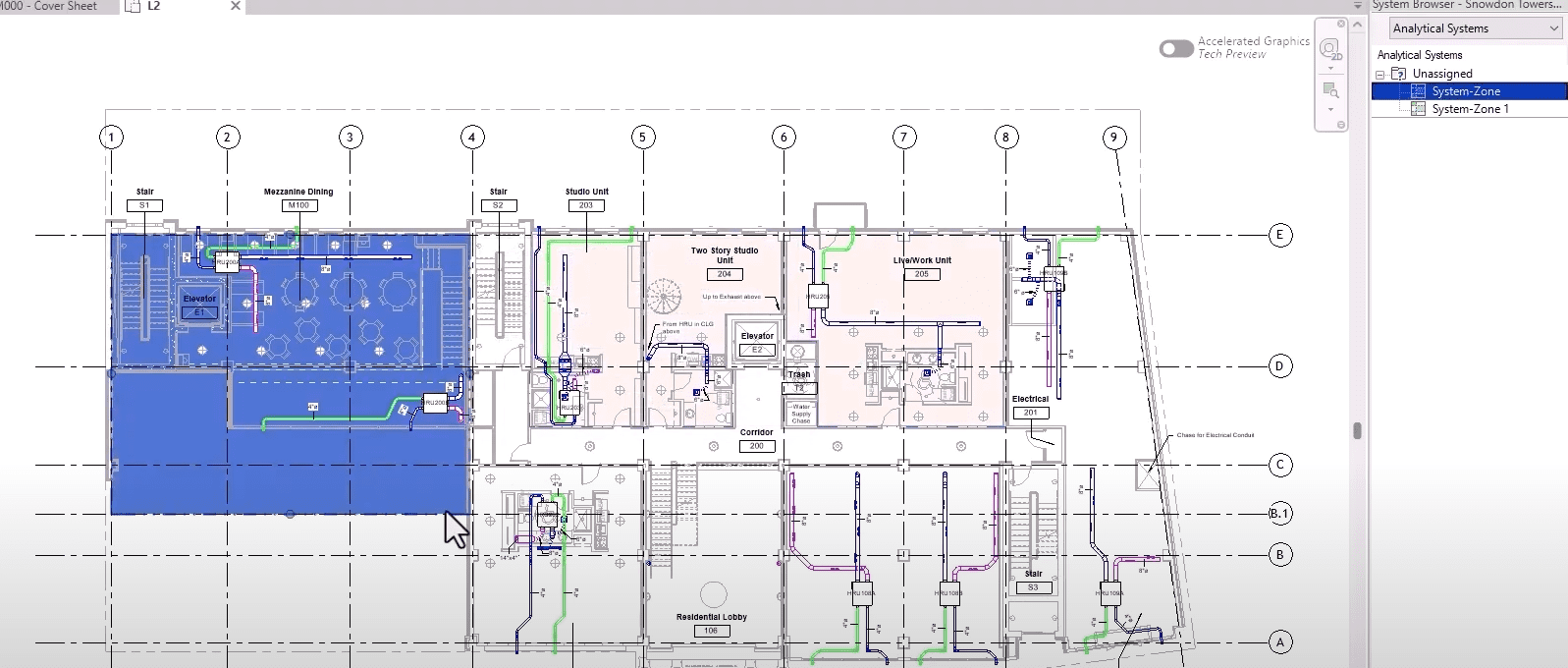
  • HVAC Zones renamed to System-Zones
  • Design option Enhancements

OUR TAKE

Revit 2027 is best viewed as a consolidation release, strengthening foundations rather than redefining workflows. A stepping stone along a much longer road to efficient collaboration and project delivery across all sectors, in a cohesive environment.

To see the full improvement list click here.
Autodesk Construction Cloud joins Forma

New Updates to Autodesk Products

ACC GETS A REBRAND

On March 24, Autodesk Construction Cloud (ACC) will be renamed Autodesk Forma as an extension into the Forma Industry Cloud; An AI-native platform that organizes currently fragmented workflows and data into a single, insight-driven environment.

Autodesk’s vision is to support more informed decision-making across planning, design, construction and operations. 

Autodesk Forma

WHATS CHANGING?

FORMA BRANDING

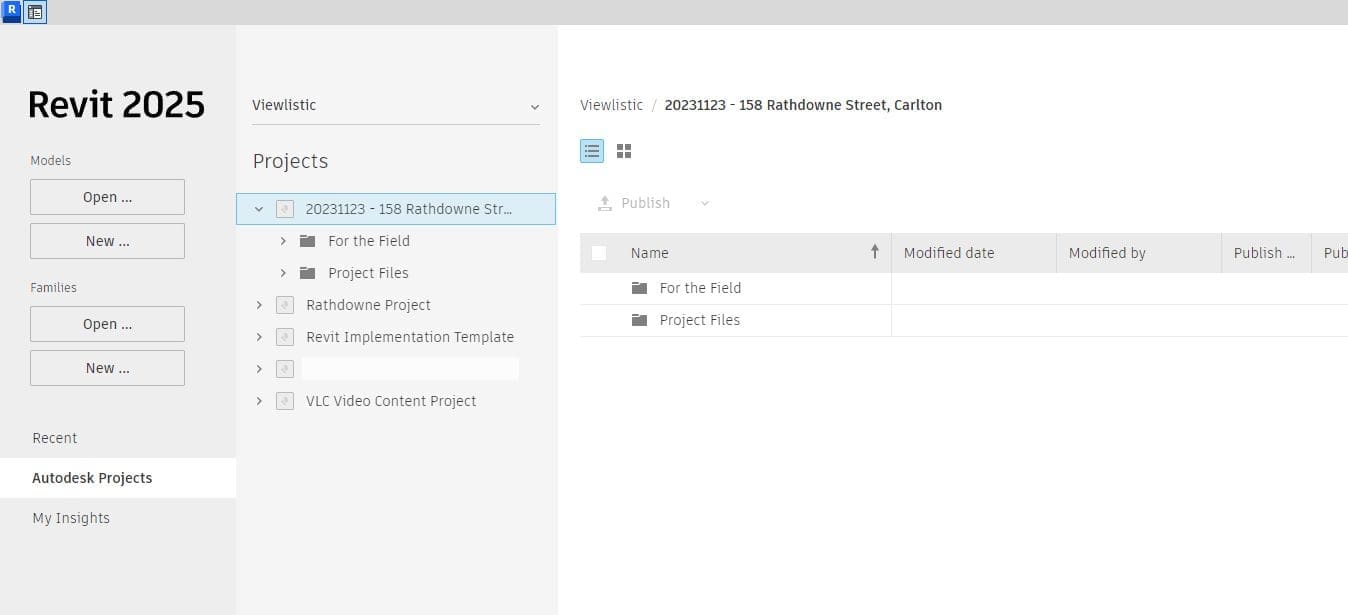
  • Docs will appear as Data Management in the product UI
  • Navigation to additional Forma solutions will surface in the UI
  • The logo in the top of the UI will change to Autodesk Forma
  • ACC Mobile App will be re-named to Forma, see FAQ
  • Account Admin in the product UI will change to Hub Admin


SAME PRODUCTS, NEW NAMES:

  • Autodesk Docs    Forma Data Management
  • Autodesk BIM Collaborate Pro    Forma Design Collaboration
  • Autodesk Build    Forma Build
  • Autodesk Takeoff    Forma Takeoff
  • Autodesk Estimate    Forma Estimate
  • Preconstruction Bundle    Forma for Preconstruction
  • Model Management Bundle    Forma for Model Management
  • Construction Operations Bundle    Forma for Construction Operations

WHATS NOT CHANGING?

Fret not, the change will not disrupt current projects and tasks:

  • No data migration. All projects, members, settings and data remains as is.
  • No changes to URLs, logins, APIs or integrations.
  • No changes to licensing or user provisioning.
  • No changes to workflows or automations setup in ACC.

WHAT DO I NEED TO DO?

To continue receiving product notifications, whitelist the new Forma email domains.

Otherwise, business as normal.

WANT TO KNOW MORE?

Autodesk Revit 2026

Revit 2026 is designed to empower your team with cutting-edge tools and enhancements that drive innovation
and efficiency in your BIM projects. New features will improve your design and construction processes to meet
the demands of today’s dynamic industry.

New features in Autodesk Revit 2026

Each year Revit sets a new standard for BIM excellence, offering powerful advancements that enhance project
delivery and performance. The latest evolution has better tools to achieve greater precision, speed, and
collaborative control, ensuring you stay ahead in a competitive landscape. See below for the full list of
enhancements.

WALLS

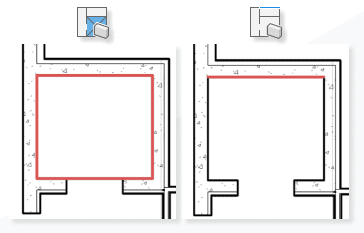
  • New Create by Room Segment allows the creation of finish layers by selecting other walls.
Two diagrams showing different methods of reinforcing a corner in construction. The left diagram highlights a square reinforcement area in red, while the right diagram shows a linear reinforcement along the corner.
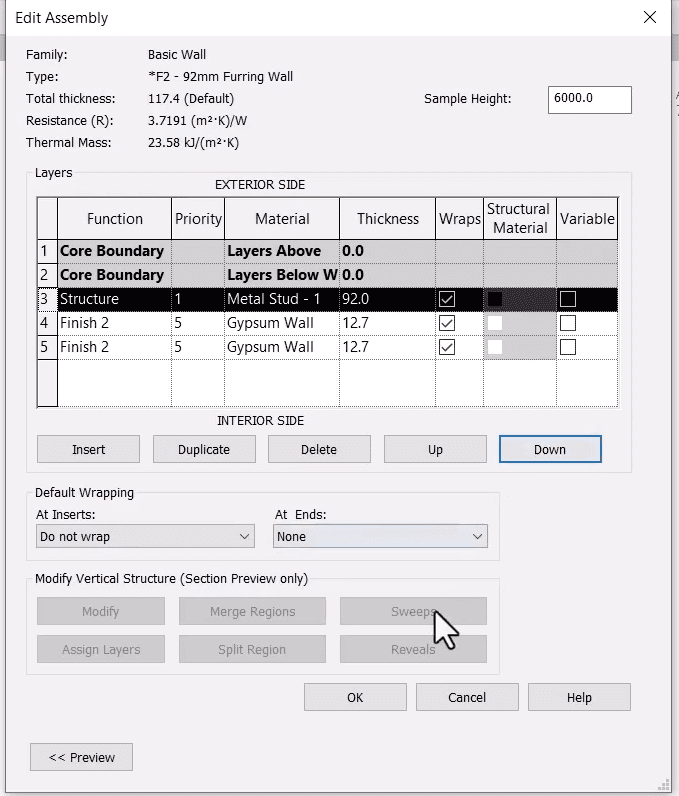
  • Core Layers are no longer required in Compound Structures and each layer has a priority function to define and improve wall joins where required.
A detailed assembly diagram of a basic wall structure, showing various layers and their properties, including thickness and thermal resistance.

TOPOSURFACE ENHANCEMENTS:

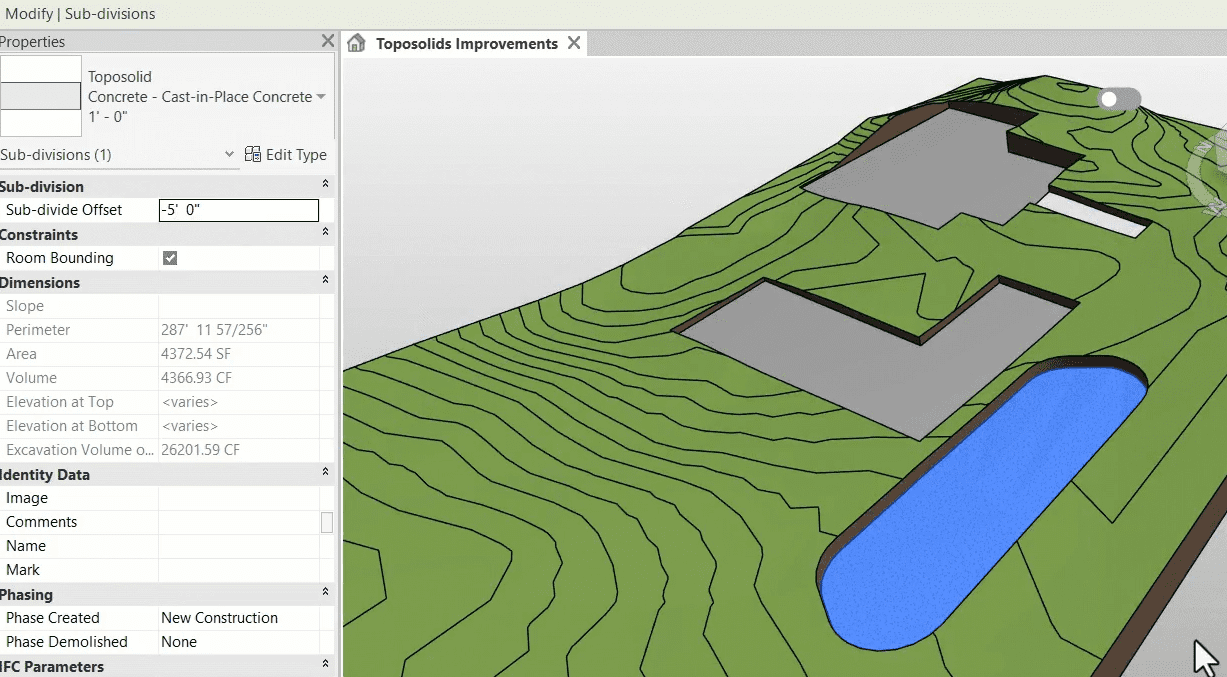
A 3D model of a landscape with topographical lines, buildings, and a body of water, accompanied by a panel listing various properties and parameters.
  • Multiple subdivisions within the same Toposolid and set different types for each subdivision.
  • Subdivisions can now also be scheduled and edited within Visibility and Graphics.
  • Toposolid Accuracy – A large criticism of the Toposolid feature was inaccuracy when compared with the
  • previous Toposurface system. This has been vastly improved to better generate accurate cut & fill volume.
  • Void Cutting improved.
  • Copy/Paste Points has been introduced to speed up modelling.
  • Maximum Toposolid Points increased from 10,000 to 20,000.

VIEW CALLOUTS, ELEVATION/SECTION MARKS AND VIEW REFERENCES:

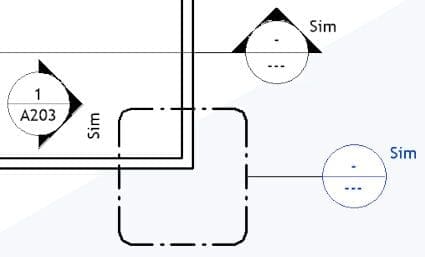
  • Instance-based Reference Labels. They still have a type-default, just use the instance parameter to define your own where necessary.
A technical drawing featuring various symbols and annotations, including circles with triangles inside, labeled "Sim" and "A203."
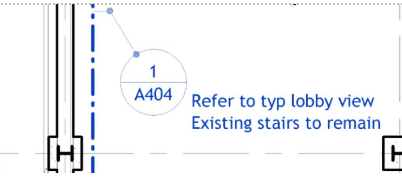
  • Introduction of Shared Parameters for View markers and references.
A technical drawing with annotations, including a label "A404" and text indicating existing stairs and a lobby view.
  • Global Setting for Structural Elements to Disable automatic shortening of Steel elements when auto-joining.

SHEETS

  • Additional parameters available in Schedule Sheet List properties including fields from Global Parameters and titleblocks.
  • Sheet Collections are now available as a category for Schedules, allowing for quick automation of parameter inputs based on Sheet Collection.
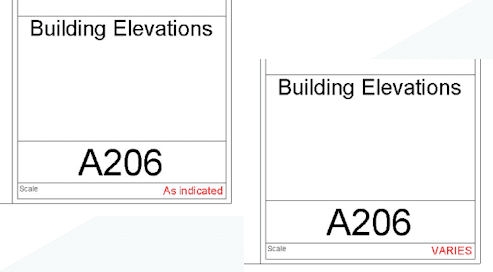
  • “As Indicated” Scale override parameter for all Titleblocks.
Two Revit sheet title blocks displaying different scale label styles – one shows "As indicated" and the other
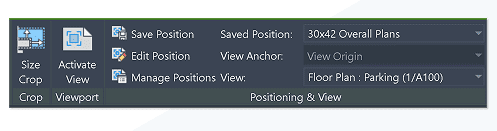
  • Savable View position to lock in place and repeat saved position throughout the Project with Automated View Placement.
Revit viewport properties panel showing crop, positioning, and saved view settings for a floor plan view.

LINK MANAGEMENT

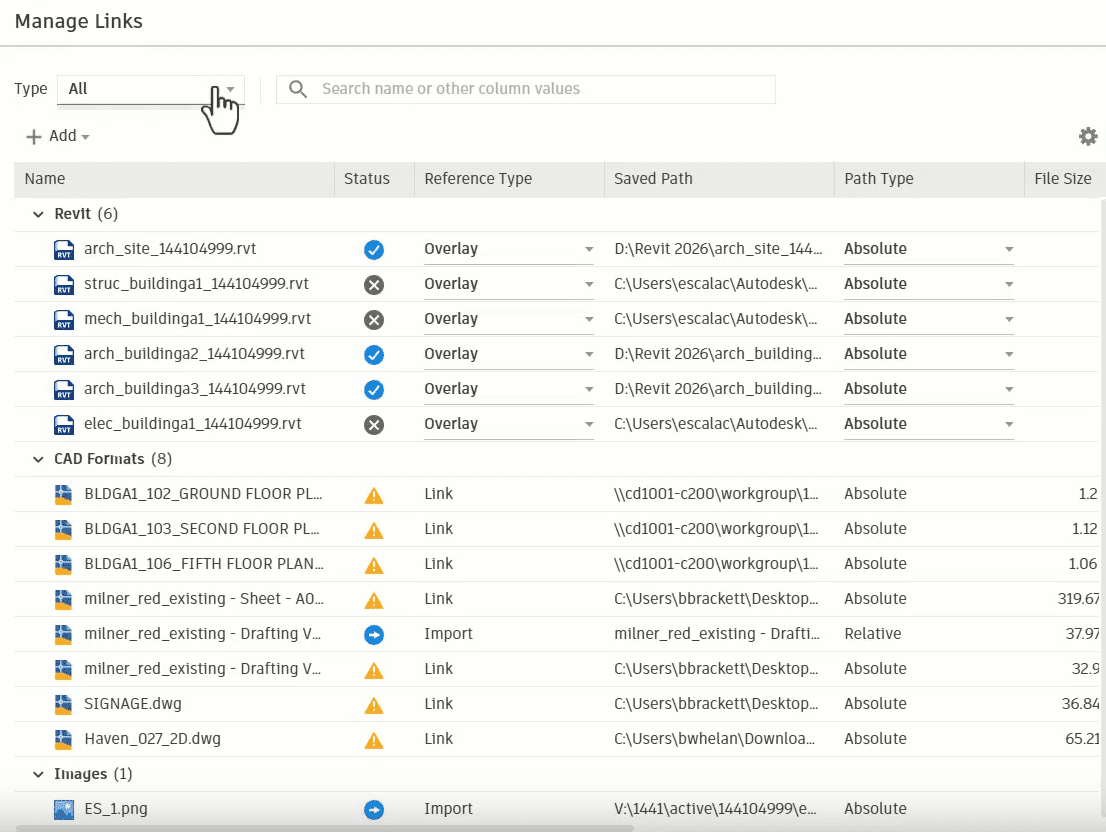
  • 2025.5 saw the overhauled Manage Links interface with Improved visibility and control of linked Models and CAD formats. You can now view imported or linked items in the same dialog.
Revit Manage Links dialog showing Revit, CAD, and image file links with status indicators and path types.
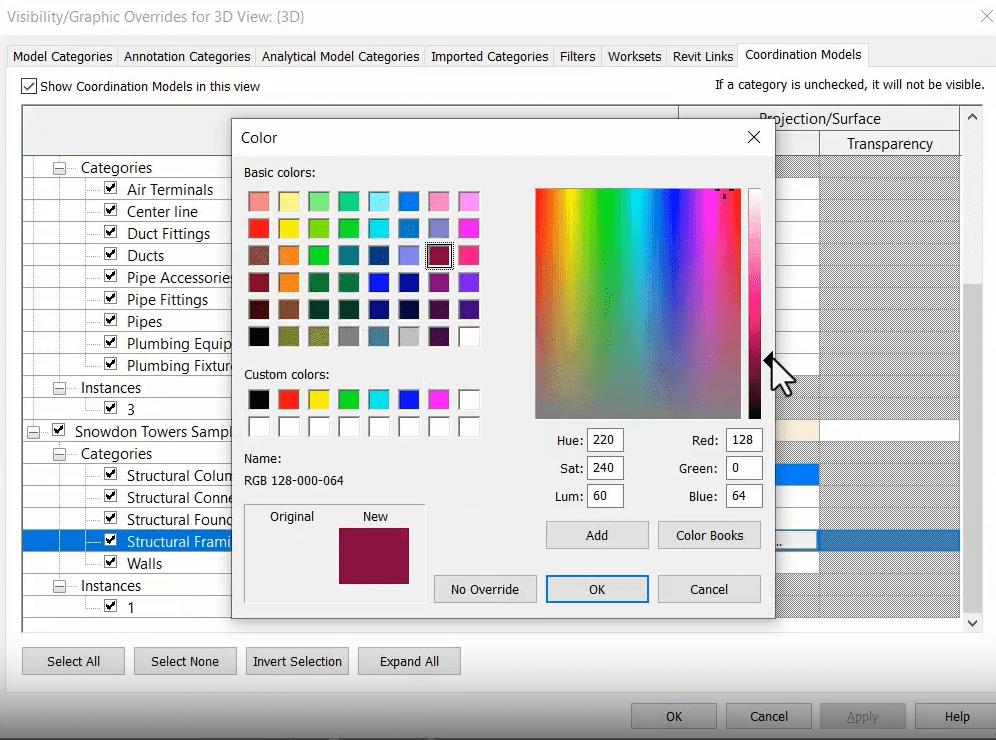
  • Coordination Model Visibility & Graphics tab, allowing for greater visual control of categories and the colour of linked elements in views.
Revit Visibility/Graphic Overrides dialog showing the color selection window for changing the appearance of structural framing elements in a 3D view.
  • More precise IFC positioning.

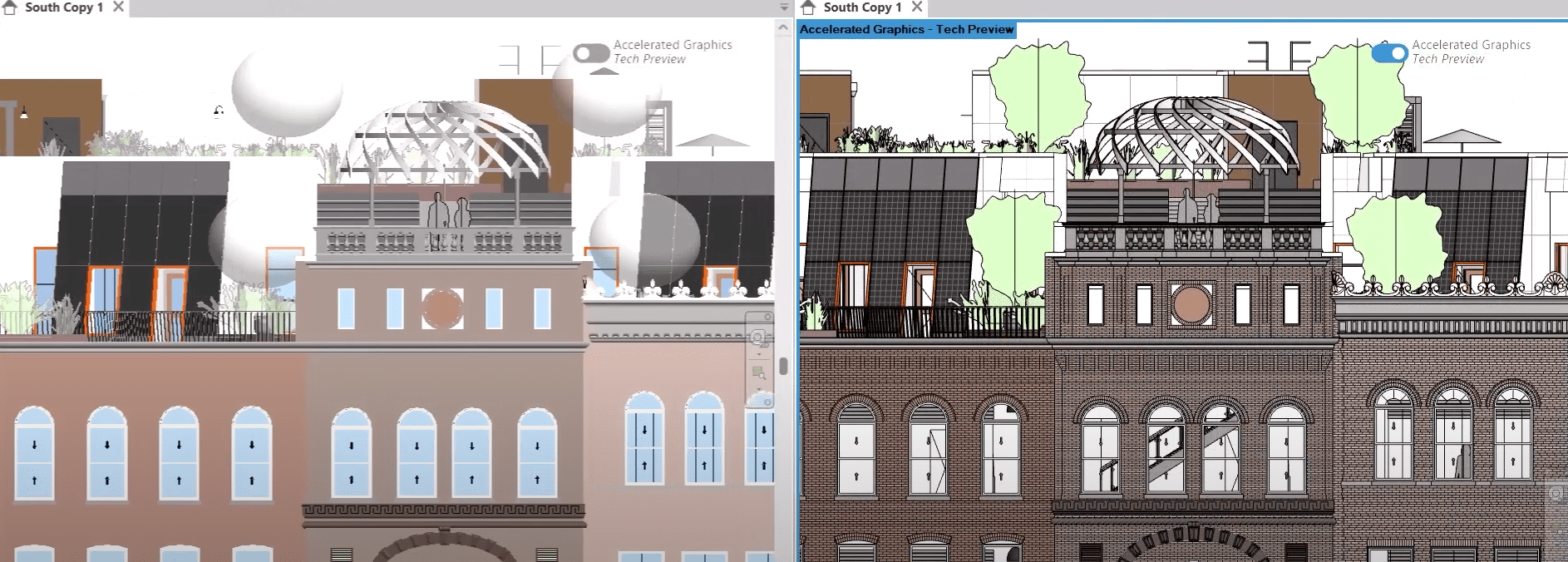
ACCELERATED REVIT GRAPHICS TECH PREVIEW

  • Enhances visual performance and responsiveness, reducing lag and improving navigation speed in 3D and 2D views.
Side-by-side comparison of Revit elevation views with and without Accelerated Graphics enabled, highlighting differences in rendering detail and clarity.

RECAP PRO MESH REVIT PLUGIN

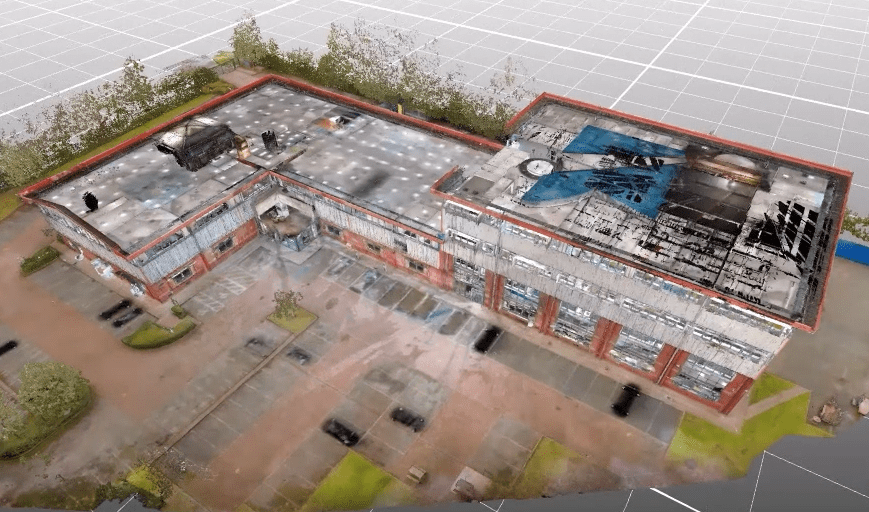
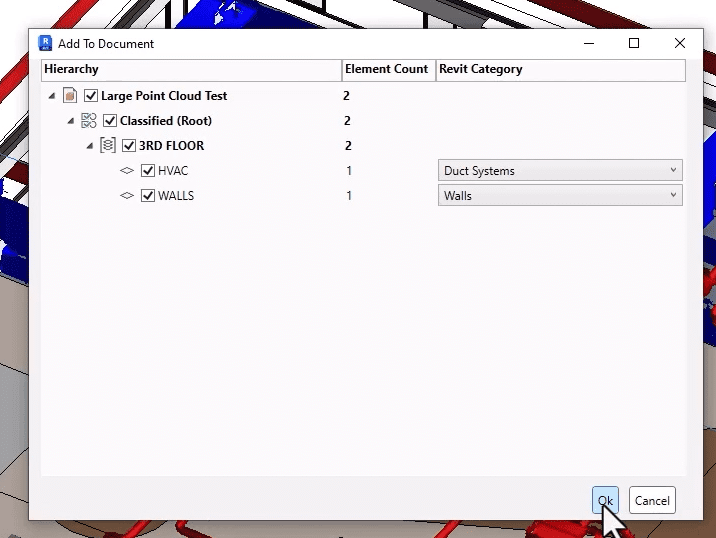
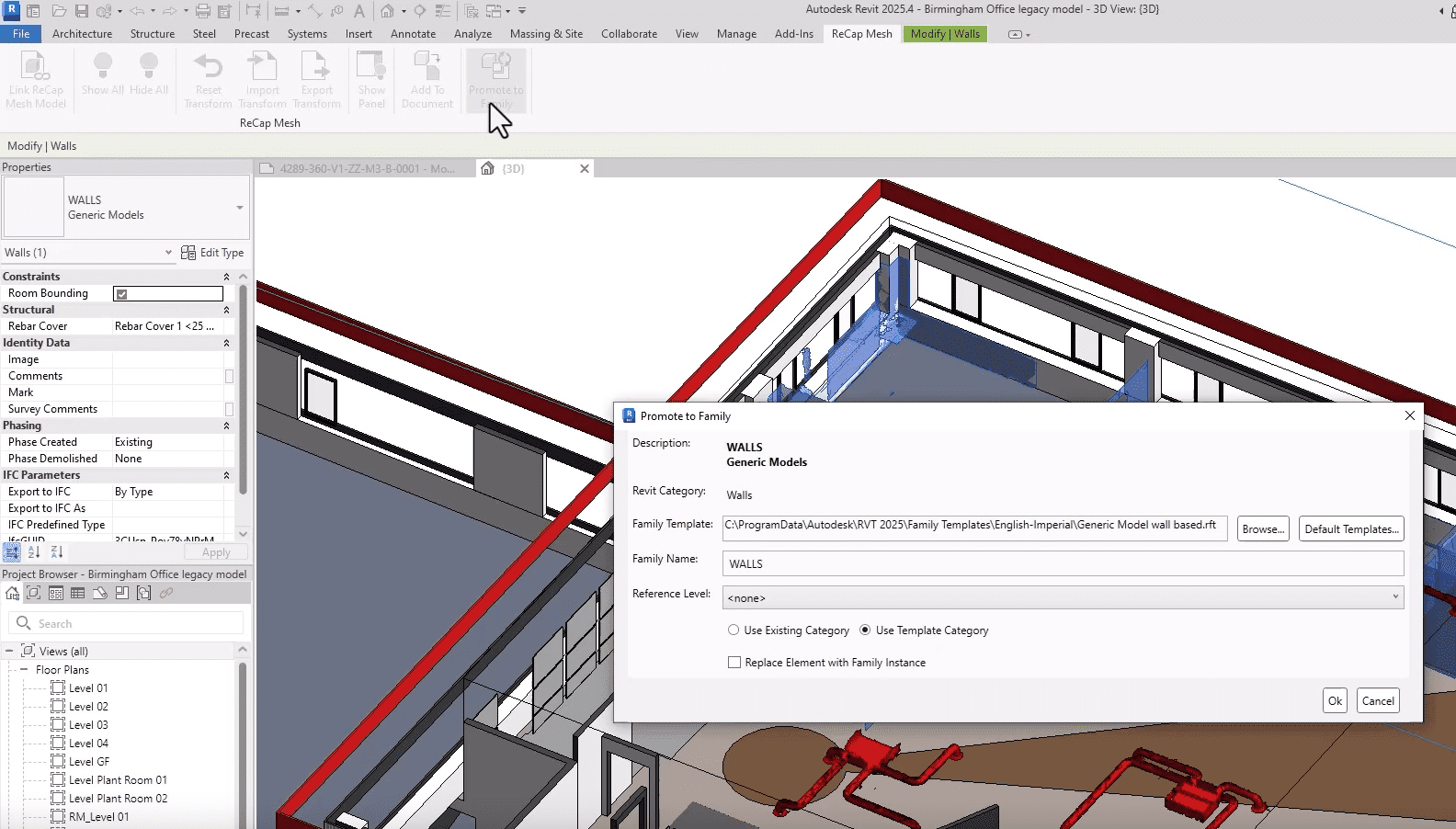
  • ReCap Pro integration allows for import and conversion of large or complex Point-Clouds into Revit. Link a mesh, define parts and convert Mesh geometry to native Revit Families.
3D point cloud model of a commercial building and its surrounding site, captured using reality capture technology.
Revit "Add to Document" dialog showing classification of point cloud data into HVAC and Wall elements with assigned Revit categories.
Revit interface showing the “Promote to Family” dialog box for a wall element converted from a ReCap mesh, with Revit category and template selection options.

INTERFACE CHANGES:

  • Many modification and placement options moved from Option Bar to Ribbon.

ENHANCED TWINMOTION FAMILY SUBSTITUTION

Side-by-side comparison of a low-poly car model in a modeling environment and a fully rendered, photorealistic version of the same car.

MEP IMPROVEMENTS:

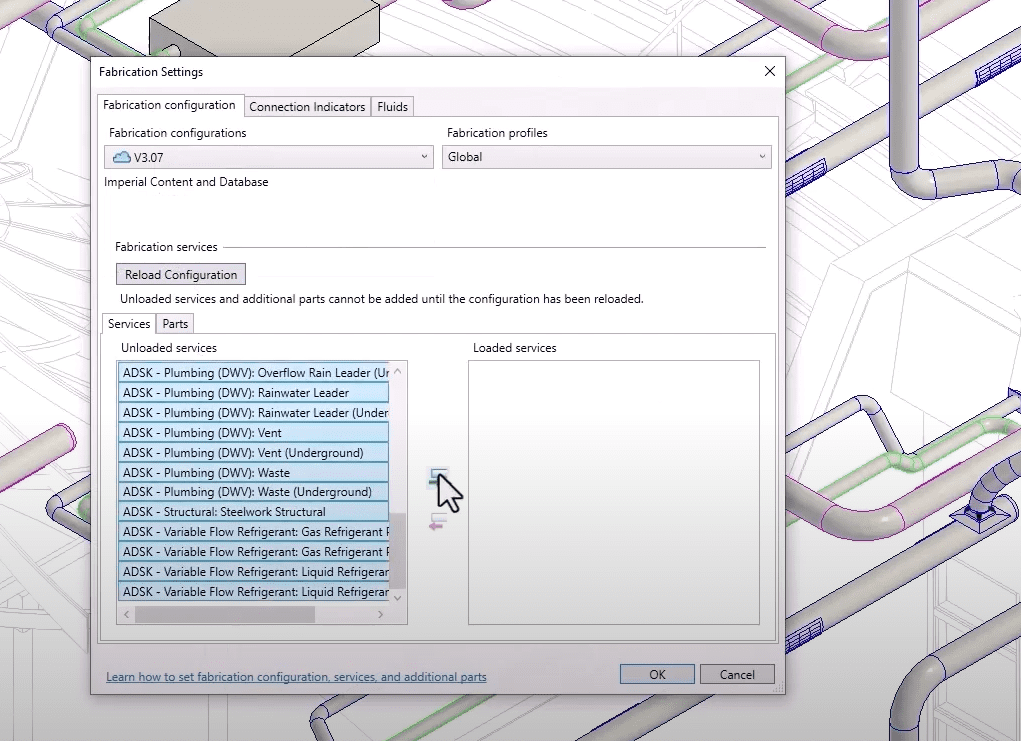
  • MEP Fabrication load times are now 70% faster and issues with step-downs have been addressed.
Revit Fabrication Settings dialog showing a list of unloaded and loaded MEP services under the "Fabrication configuration" tab.
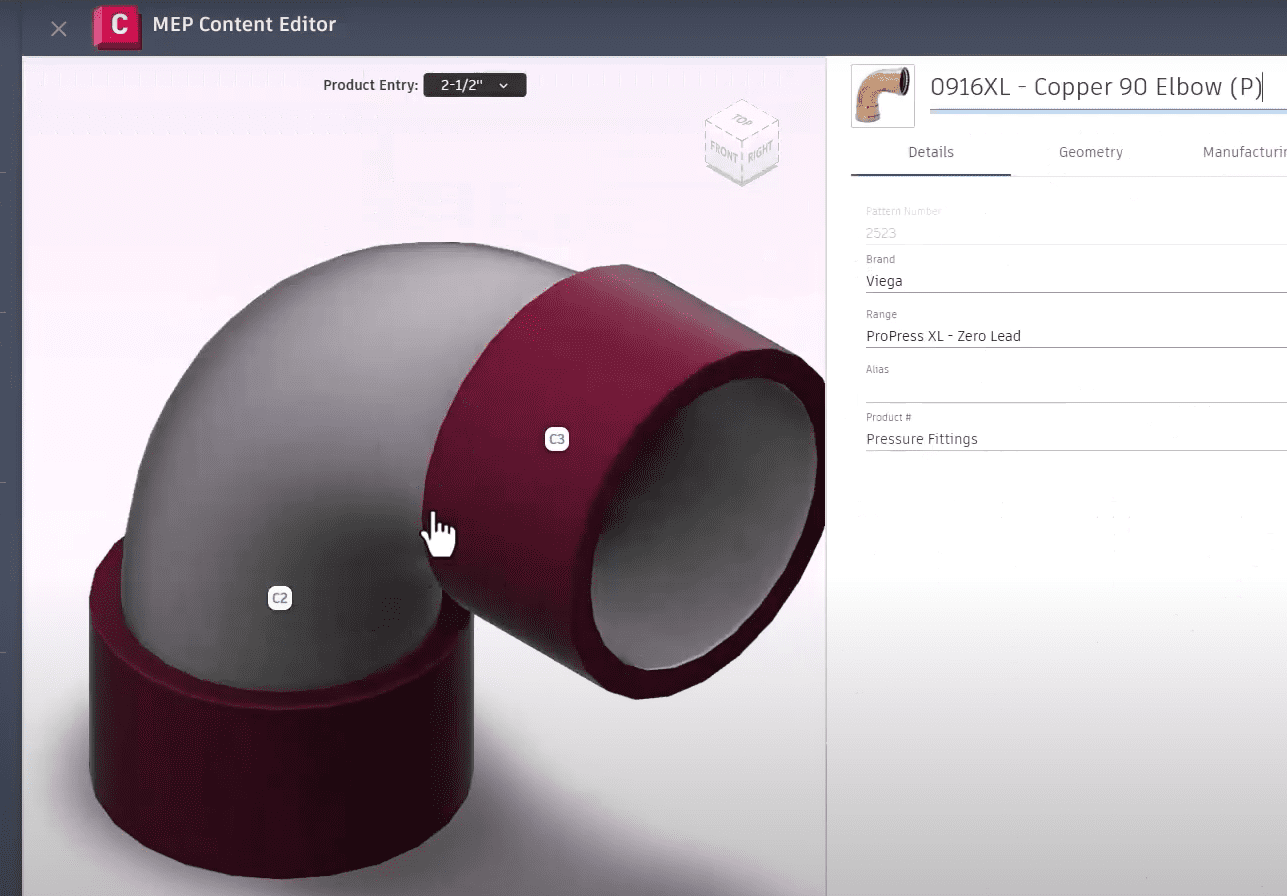
  • MEP Content Editor now permits 3D visuals of connections before loading into the project.
MEP Content Editor interface showing a 3D view of a copper 90-degree elbow fitting with editable connection points and product details. Title:
  • Globalized Electrical conductors to manage circuit wiring requirements and cable configurations.
  • Enhanced HVAC zoning and analytical model coordination.
Revit floor plan view showing assigned analytical system zones with mechanical ductwork and piping layouts overlaid.

MEP IMPROVEMENTS:

  • Easily model cranked rebar in congested areas to prevent clashes.

With every release, Revit continues to redefine what’s possible in Building Information Modeling, and this year is no exception. The latest version introduces a suite of features designed to streamline workflows, improve coordination, and deliver more accurate results faster than ever before. Whether you’re focused on design, documentation, or data-driven decision-making, these updates are built to support your evolving project needs and keep your teams aligned and productive. If you’re looking to maintain a competitive edge and elevate the quality of your project outcomes, now is the perfect time to explore what’s new. Download the latest version and experience the improvements firsthand – see the full list of enhancements here.
Autodesk Revit 2025.1

Time to elevate your BIM experience! Our latest update is packed with innovative features designed to boost productivity and enhance collaboration. Enjoy advanced automation tools, seamless integration, and streamlined workflows. Transform your BIM projects and achieve more in less time.

See what's new in Autodesk Revit 2025

Introducing Revit 2025! This latest release comes packed with innovative features designed to enhance your design process and boost productivity. Key highlights include the Toposolid enhancement for intuitive terrain manipulation, advanced automation tools to streamline workflows, improved collaboration capabilities, and seamless integration with other design tools. Experience the future of BIM with Revit 2025, where every feature is crafted to help you create, analyze, and visualize your projects more efficiently and accurately than ever before.
TOPOSOLID ENHANCEMENTS

Discover the groundbreaking Toposolid enhancement in Revit 2025! This feature allows intuitive and flexible manipulation of terrain surfaces, improving accuracy and efficiency in site designs. Seamlessly integrate terrain data with other project elements for a cohesive and accurate model. Experience the future of topography in Revit 2025!
Screenshot 2024-06-17 113933
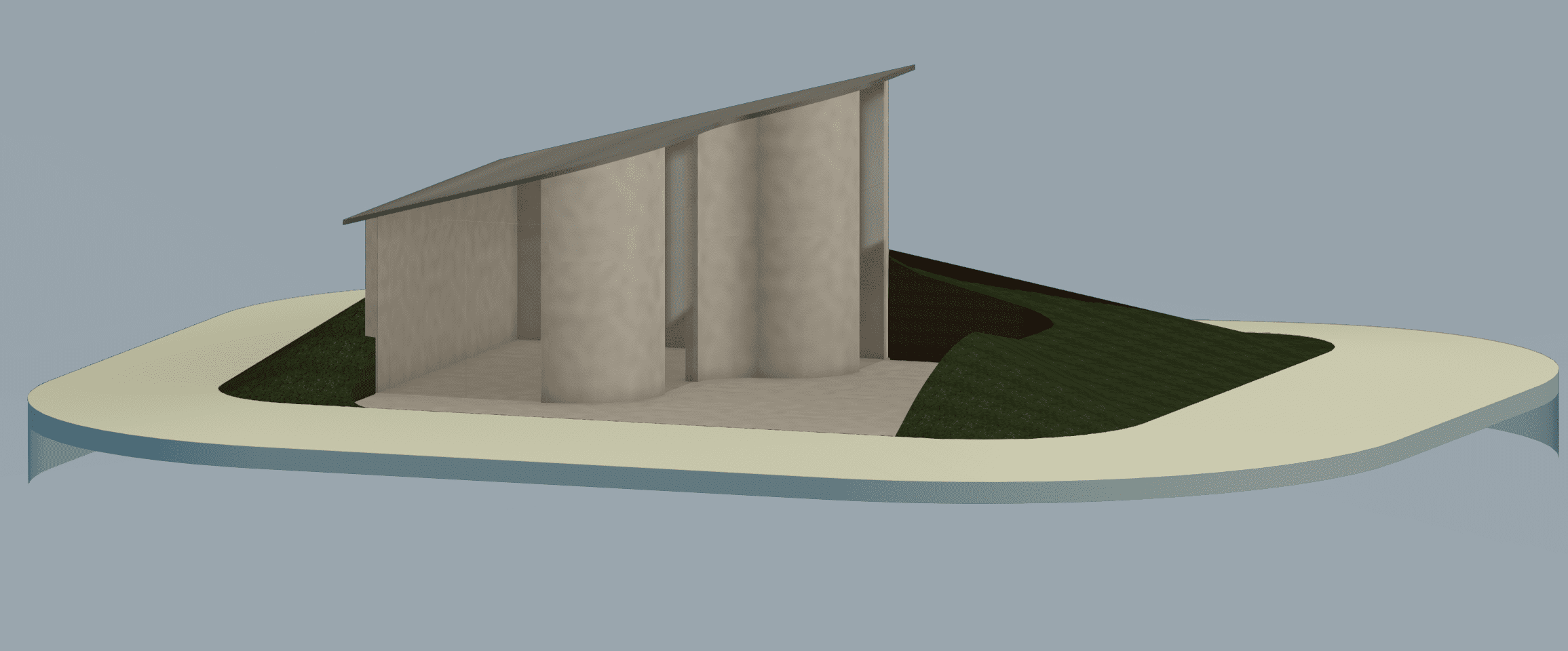
  • Excavate a Toposolid with an intersecting roof, floor, Shaft or other toposolid component.
  • Host elements to excavated Toposolid surfaces
  • Create from a Mass Face
  • XYZ Snapping – If selected and the mouse hovers over a place that is not a reference object, the elevation follows the “Along surface” behaviour
  • Smooth Shading
  • Contours Display while editing
  • Suppression of folding lines while editing
  • Linked Topography improvements

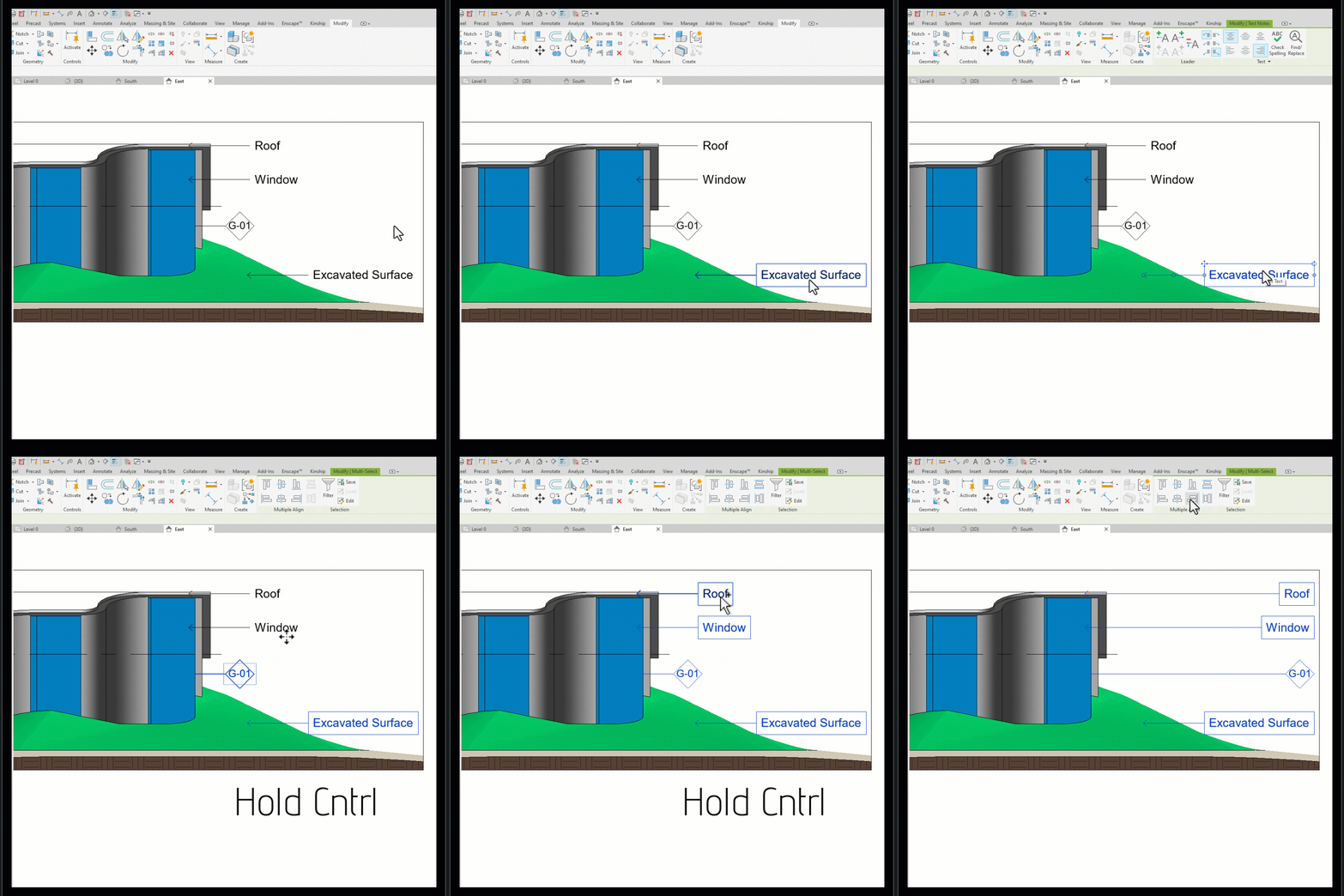
ALIGN MULTIPLE

Align and distribute multiple keynotes, text notes, and tags effortlessly with the new Multiple Align Panel in Revit 2025. This powerful tool allows you to organize your annotations with precision, ensuring a clean and professional presentation of your drawings. The Multiple Align Panel simplifies the process, saving you time and reducing the risk of errors, so you can focus on creating high-quality designs.
Multiple Align
Align and distribute multiple keynotes, text notes and tags using the new Multiple Align Panel.

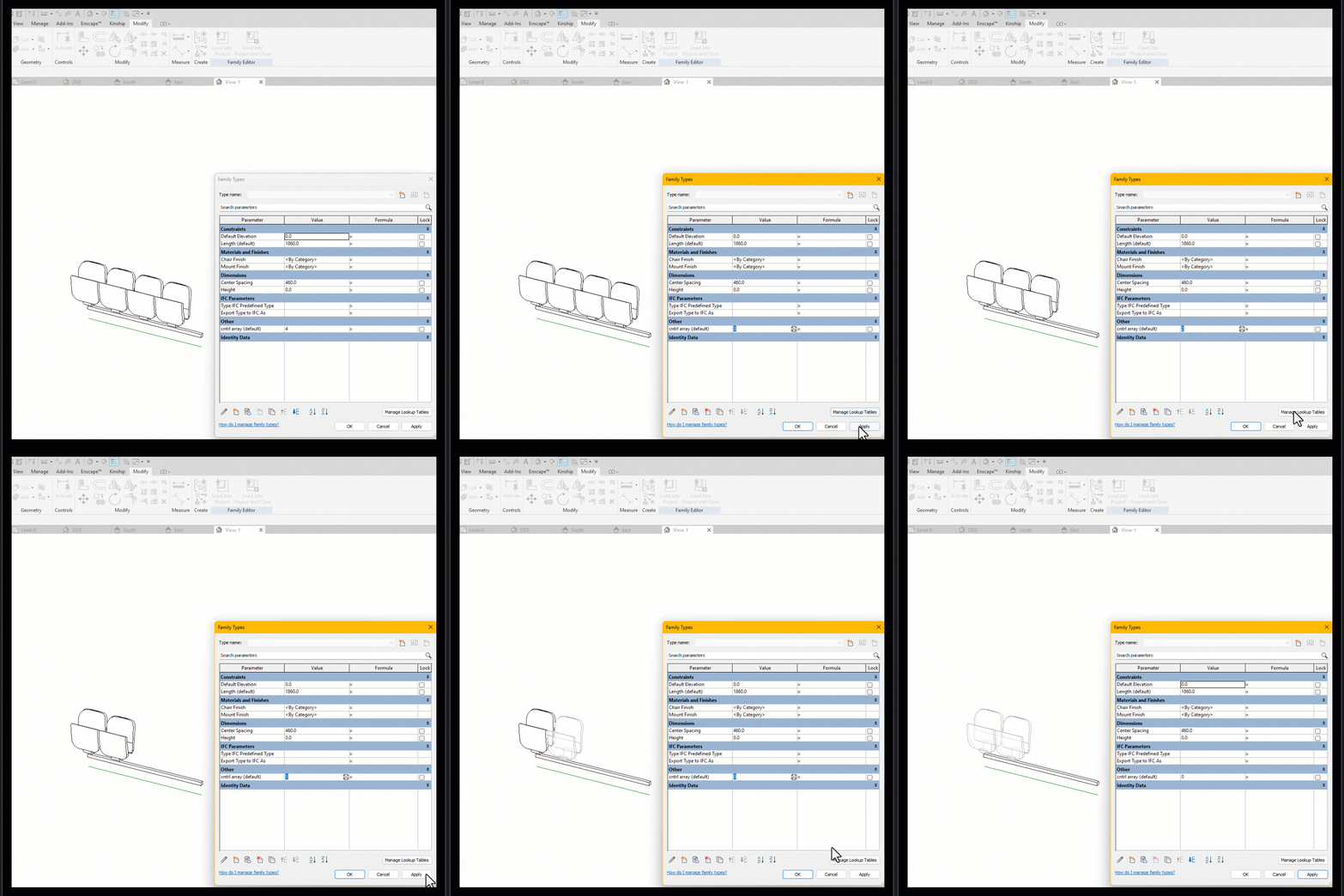
ARRAY UPDATE

Arrays
For the Modellers out there, the arrays update is a HUGE improvement. Previously, a family would break when less than two of an arrayed item are present, requiring multiple visibility options and formulas controlling them. Now Arrays are permitted to decrease to 1 or 0, streamlining family creation.

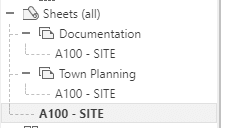
SHEET COLLECTIONS

Screenshot 2024-06-17 120741
Organize your sheets into flexible groupings, allowing duplicate sheet numbers within different collections. New collection parameters added and compatible with view types for further Grouping & Scheduling.

INTERFACE ENHANCEMENTS

Screenshot 2024-06-17 121004
  • New Home Screen – Improved ACC Navigation, view filtering, and History Data Panel.
  • Project Browser Search – Improved the ability to view all the child nodes when the parent node does not contain keywords.
  • Options Bar Removed – Properties relocated to either Properties Palette or Ribbon for enhanced efficiency.
  • Material Browser enhanced for
  1. Batch Add/Delete Materials
  2. Faster Appearance Previews

BACKGROUND PDF EXPORT

TIME

Export PDFs in the background while continuing to work on your model.

DARK THEME UPDATE

Screenshot 2024-06-17 122318

Dark theme now supports schedules and panel schedules with automatic color adjustments for better readability.

Access the new Australian Autodesk Construction Cloud!

You’ve heard about the new Autodesk Construction Cloud Server, hosted in Australia, but do you know how to access it? Do you want to know if accessing the Australian server will actually save you time?

A 3D illustration of Australia with a cloud computing symbol overlaying the map, highlighting the technological infrastructure and connectivity.

You’ve heard about the new Autodesk Construction Cloud Server, hosted in Australia, but do you know how to access it?  Do you want to know if accessing the Australian server will actually save you time?

Do you want to review the FAQ and Security.  , Read on!

First, Who can Access the server, and how?

BIM Collaborate Pro

If you have BIM Collaborate Pro, you will be using Workshared Cloud models, with multiple people accessing the Revit model, potentially from different locations.  

DOCS

If you have AEC Collections, BUT NO BIM Collaborate Pro subscription, you will be using Revit Cloud models, with a single person accessing the Revit model.  

But the good news is, you can create an Autodesk Construction Cloud Site for your company, on the Australian or US Server. 

The Downsides

If you already have Autodesk Construction Cloud on the US Server, you can transfer your existing project files to your Australian Server, but not your projects.  This means, if you need to maintain previous file versions, current issues or folder permissions, you will want to keep the project on the US Server, for now.   Bridging does not currently support different regions  

To learn more about Migrating Files using the Autodesk Replication Tool (ART) click the link below.

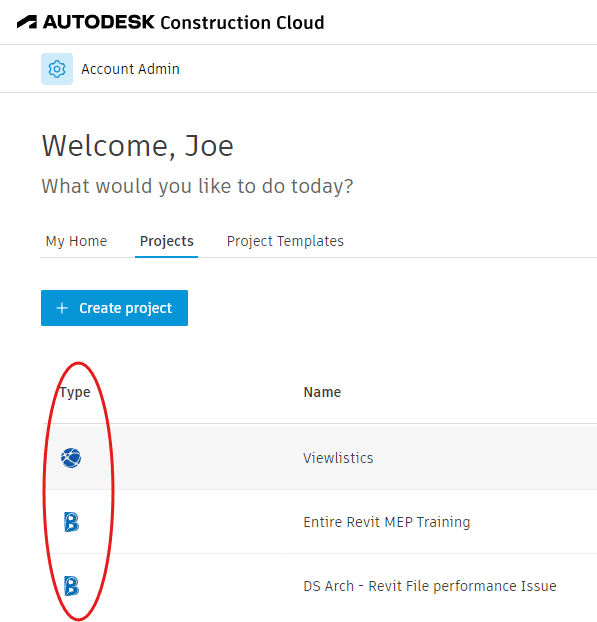
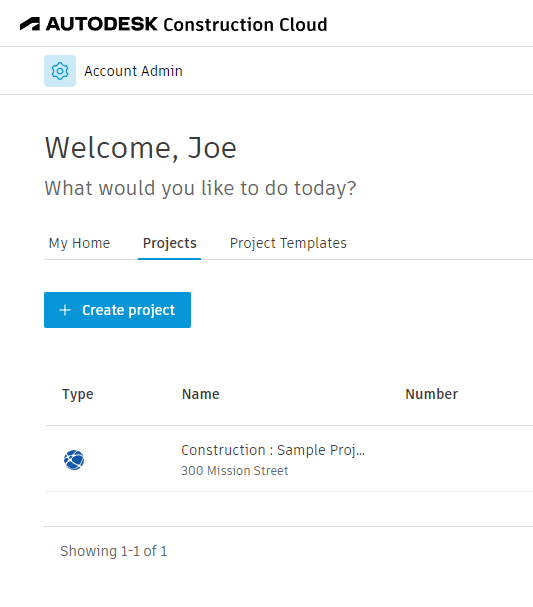
While your US Autodesk Construction Cloud > Home > Projects, will list your projects in BIM 360 and ACC, you will not see your projects hosted on the Australian Server, and vice versa.  Essentially this is not such a bad thing, if the reason you want to use the Australian server is for Data Sovereignty purposes.  

Review the Regional Data Storage FAQ

Projects listed on US server Site include BIM 360 projects and other companies projects, but not projects on the Australian Site.
Projects listed on Australian server Site only include projects on the Australian Server

Access the Autodesk Construction Cloud Australian Site

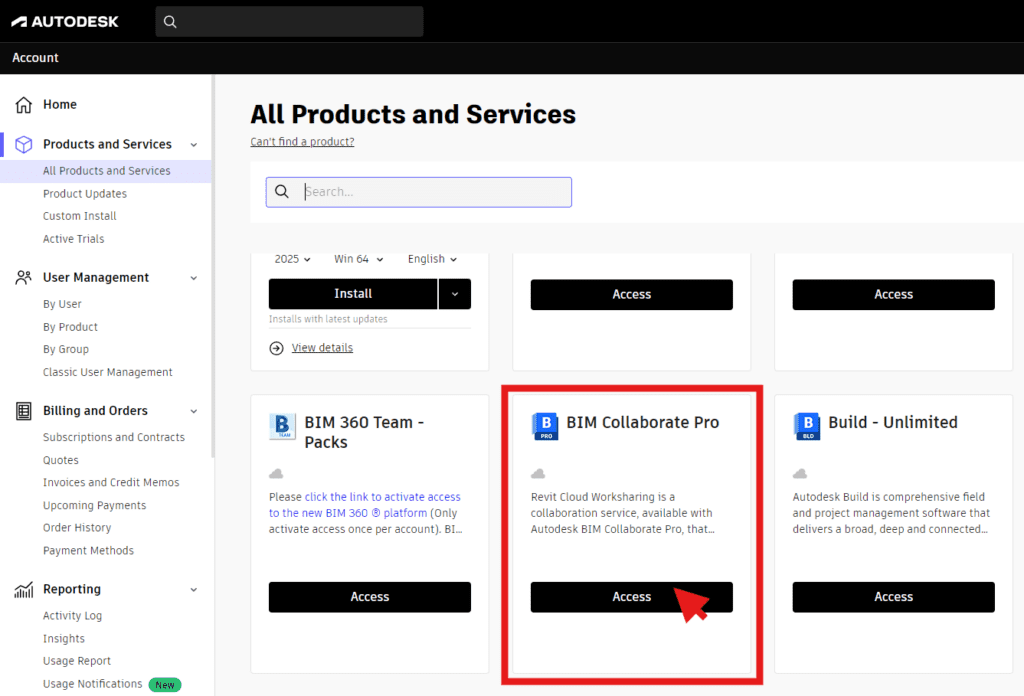
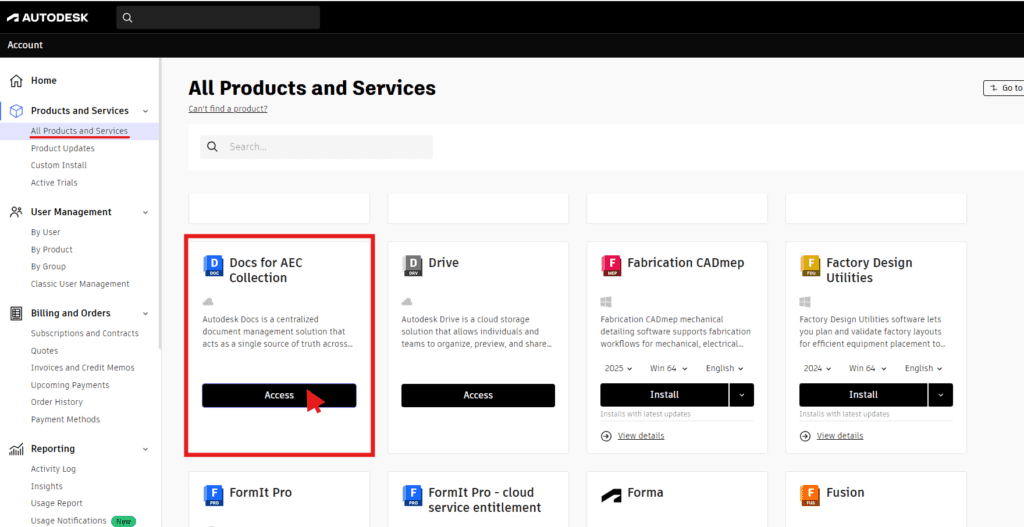
Once you are ready to create your new site, got to the Autodesk Manage portal > All Products and Services, here is a link.
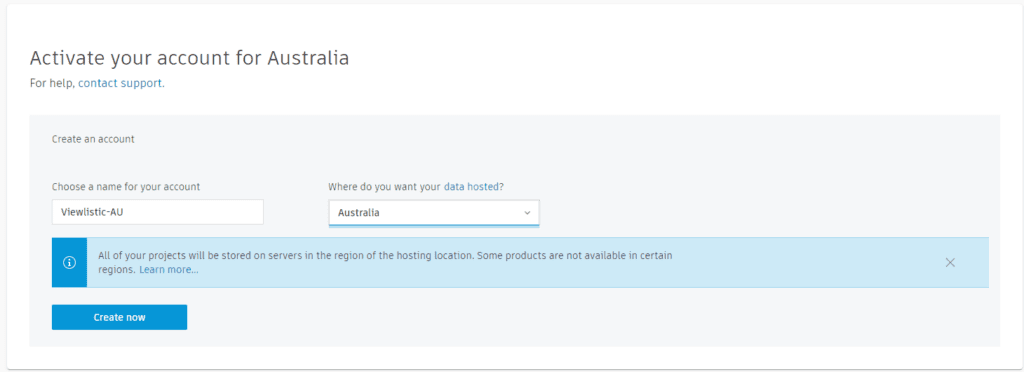
Then click Access, for either DOCS for AEC, or BIM Collaborate Pro.  In the following Window, choose a name for your account, and select Australia, for Where do you want you data hosted.

  1. Important Note, you will need to be an account admin.
  2. After you have created your site, follow the link in the welcome  email.
  3. We included AU as a suffix to our Australian Site, so as to easily identify it.
  4. Here is the address of the AU Site:  https://acc.apac.autodesk.com/projects 

The Speed Test

Finally, we simply uploaded (Collaborate in the Cloud) the same modestly sized, 128Mb Revit project, to both the US Site and to the New Australian Autodesk Construction Cloud Site.  

Upload times

US Site:  3 minutes 53 seconds

AUS Site:  2 minutes 37 seconds

Time Saved:  1 minute 16 Seconds

If you save 1/3 of the time you spend synchronising, over a year this is going to be a significant saving.

Need more information?

Architextures : Unleashing Creativity!

Architextures is more than just a texture library; it’s a comprehensive solution aimed at boosting creativity, improving efficiency, and fostering collaboration within the design process. A must-have in the toolkit of every architect and designer.

Unlocking Design Potential with Architextures

In the realm of architectural and design projects, the quest for photo-realism and precise material depiction is ever-present. This journey, however, often encounters a roadblock: the acquisition of high-quality textures. Whether it’s the cost, time, or effort involved, the hurdle of finding or creating the right textures can significantly impede creativity.

Enter Architextures – a cutting-edge solution designed to seamlessly integrate into the workflows of architects and designers. With its robust features, Architextures stands out as an indispensable tool for the modern design professional.
Architextures web app allows designers to create custom materials compatible with CAD/BIM software and download their design as a seamless texture, bump map or hatch.

Key Feature 1:

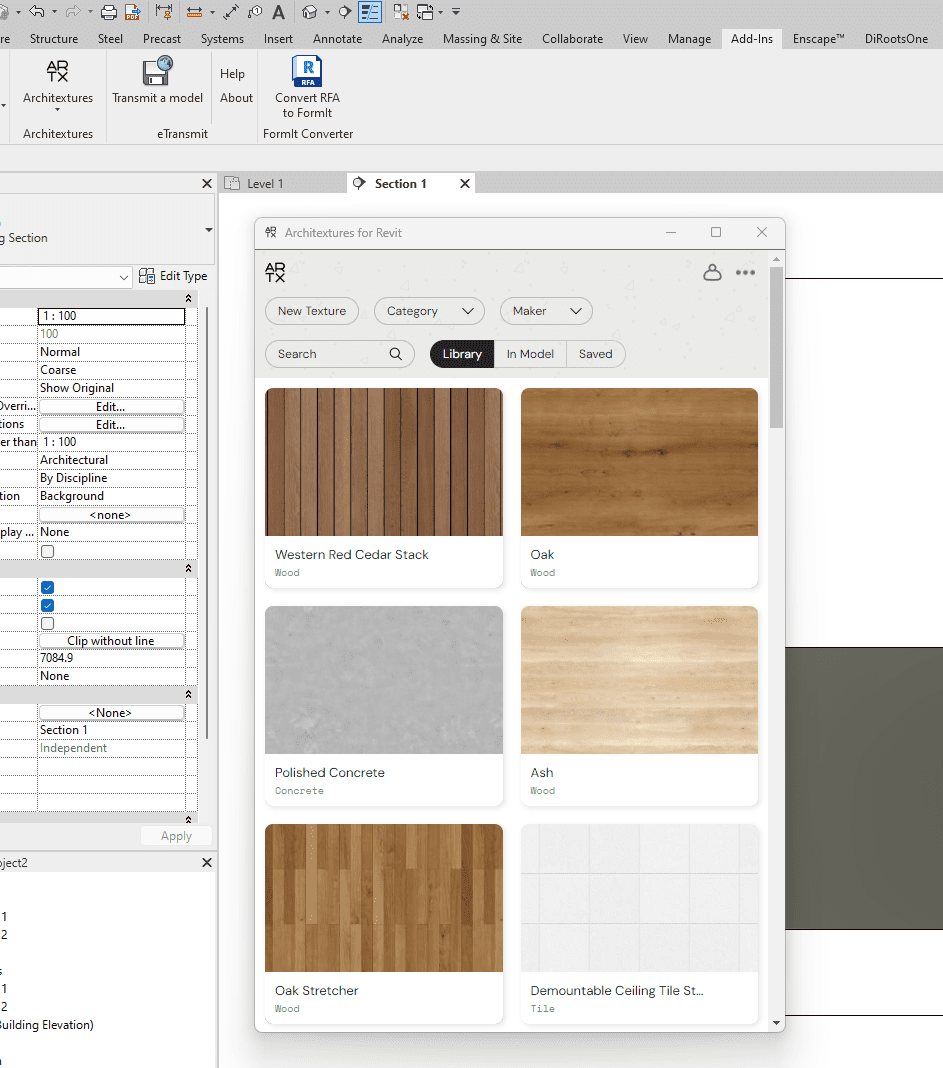
Revit and SketchUp Integration: Effortlessly apply textures and 2D hatches directly onto your models, ensuring a smooth blend with your existing workflow.
Screenshot of the Architextures interface integrated within Revit software, showing a selection of materials including wood and concrete textures.

Key Feature 2:

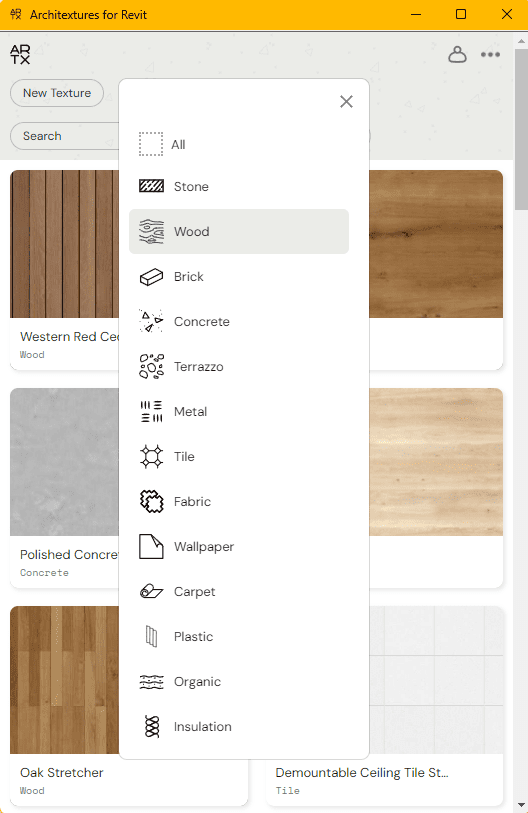
Extensive Texture Library: Gain instant access to a vast collection of ready-to-use, high-quality textures that will elevate your designs.
User interface of Architextures for Revit displaying a selection of materials categorized by type, such as Wood, Stone, and Concrete.
Extensive Texture Library: Gain instant access to a vast collection of ready-to-use, high-quality textures that will elevate your designs.

Key Feature 3:

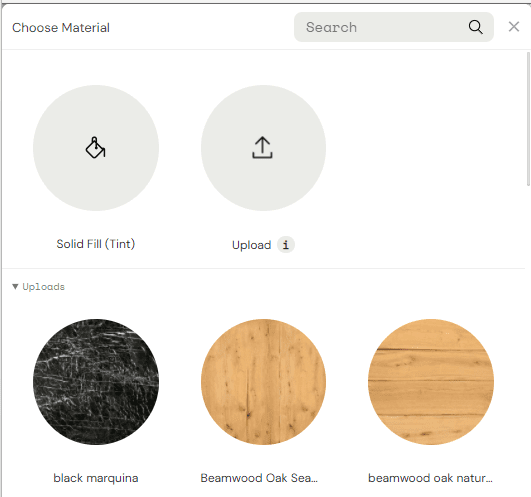
Custom Textures: Upload your own images to create unique textures, adding a personal touch to your projects.
Material selection interface showing options for Solid Fill (Tint), Upload function, and custom uploaded materials like black marquina and two shades of beamwood oak.
Custom Textures: Upload your own images to create unique textures, adding a personal touch to your projects.

Key Feature 4:

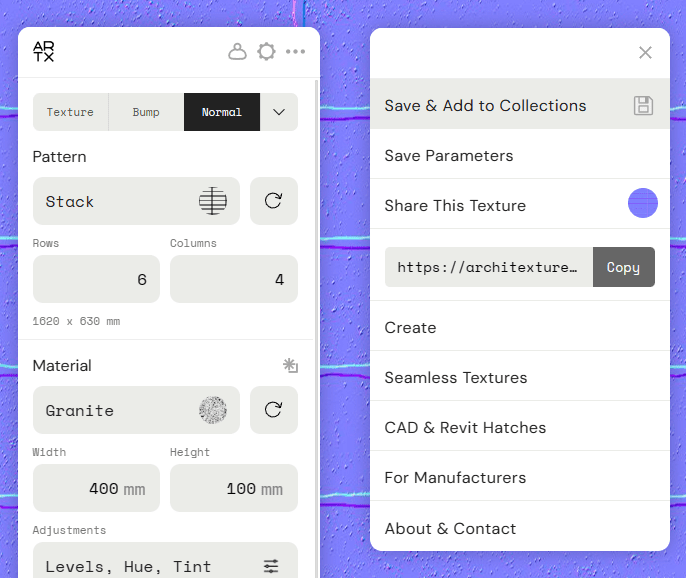
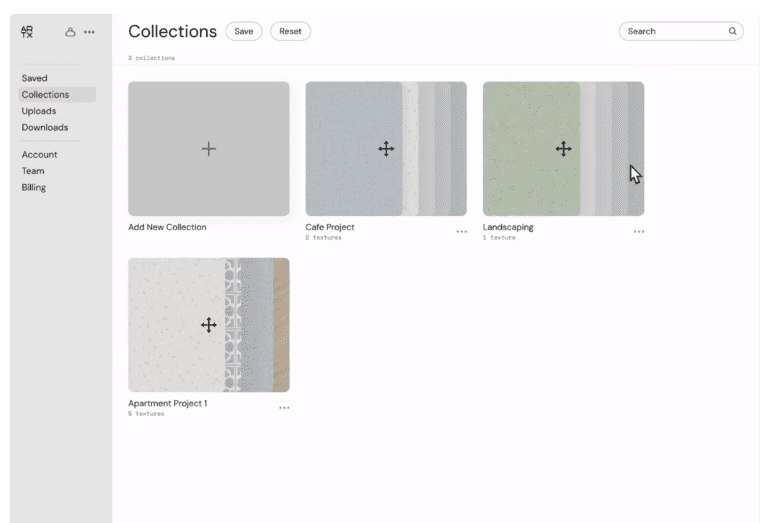
Team Collaboration: Build and share a texture library with your team, enhancing collaboration and ensuring consistency across projects.
A detailed view of the texture customization panel in Architextures with options for texture type, pattern layout, material properties, and sharing features.
Interface of Architextures showing a 'Collections' page with options to create new collections and previews of existing projects like 'Cafe Project' and 'Apartment Project 1'.
Team Collaboration: Build and share a texture library with your team, enhancing collaboration and ensuring consistency across projects.

Key Feature 5:

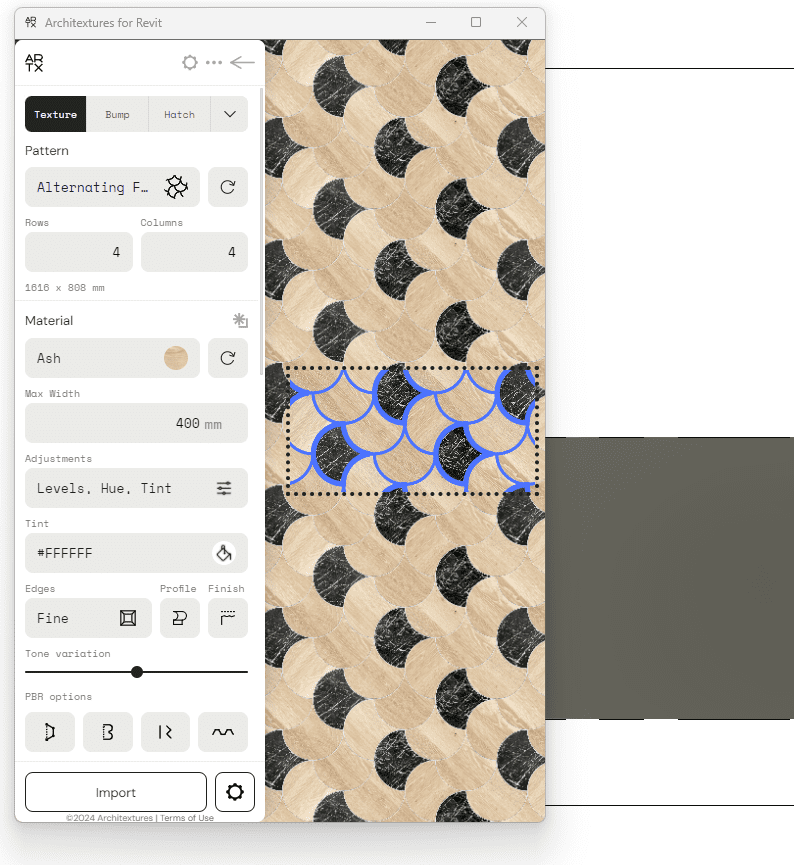
Dynamic Tools: Transform images into tiles, paving, and more with a single click. Automatically generate essential maps like hatches, bump maps, and normal maps for any uploaded texture. Additionally, adjust finishes, edges, profiles, and add multiple materials to a pattern with ease.
The interface of Architextures in Revit showing an alternating fish scale pattern of ash and black marble textures with editing tools for customization.
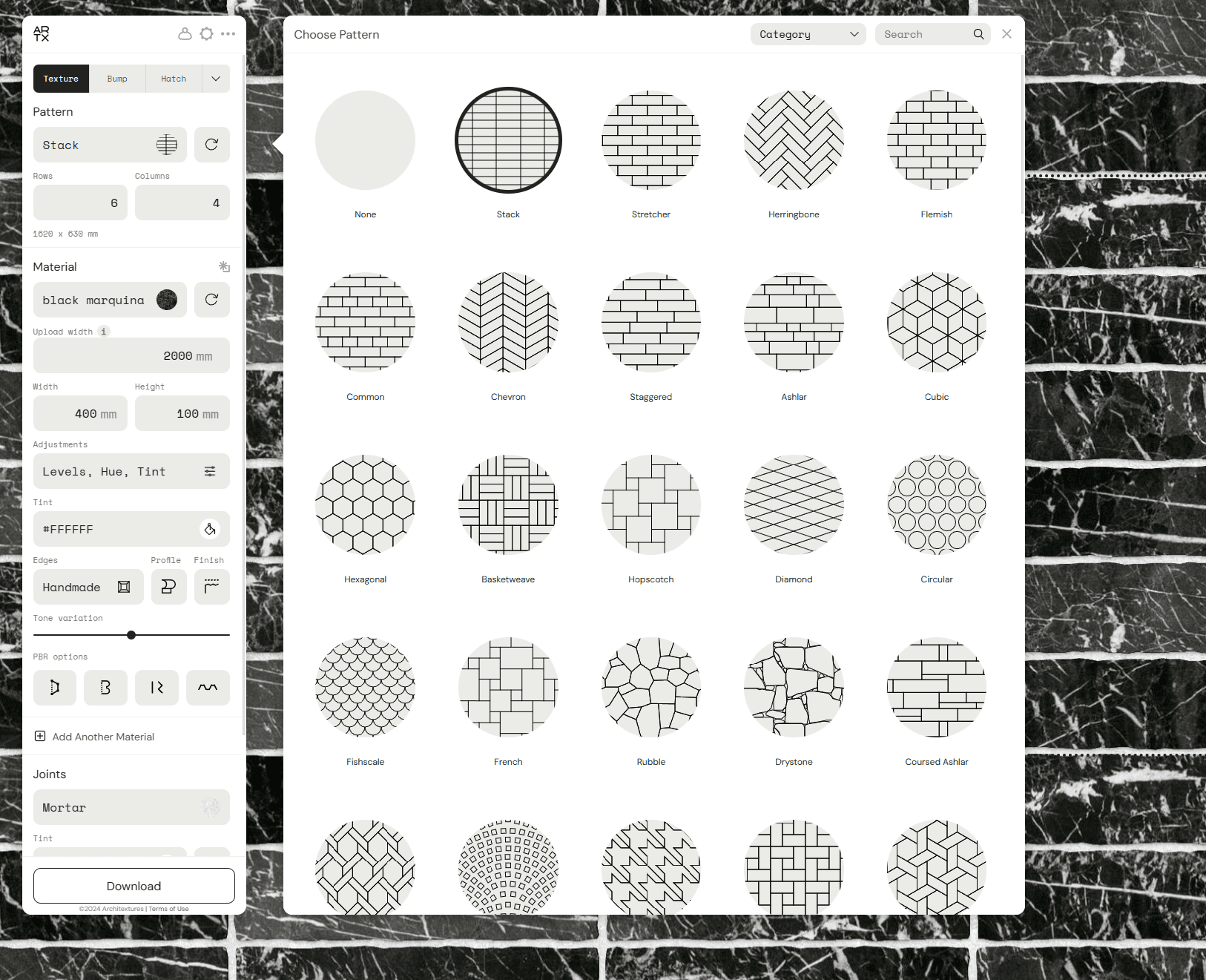
Interface showcasing a selection of masonry patterns available in Architextures against a background of black marquina marble texture.
Resize or adjust finishes, edges and profiles and Add multiple materials to a pattern
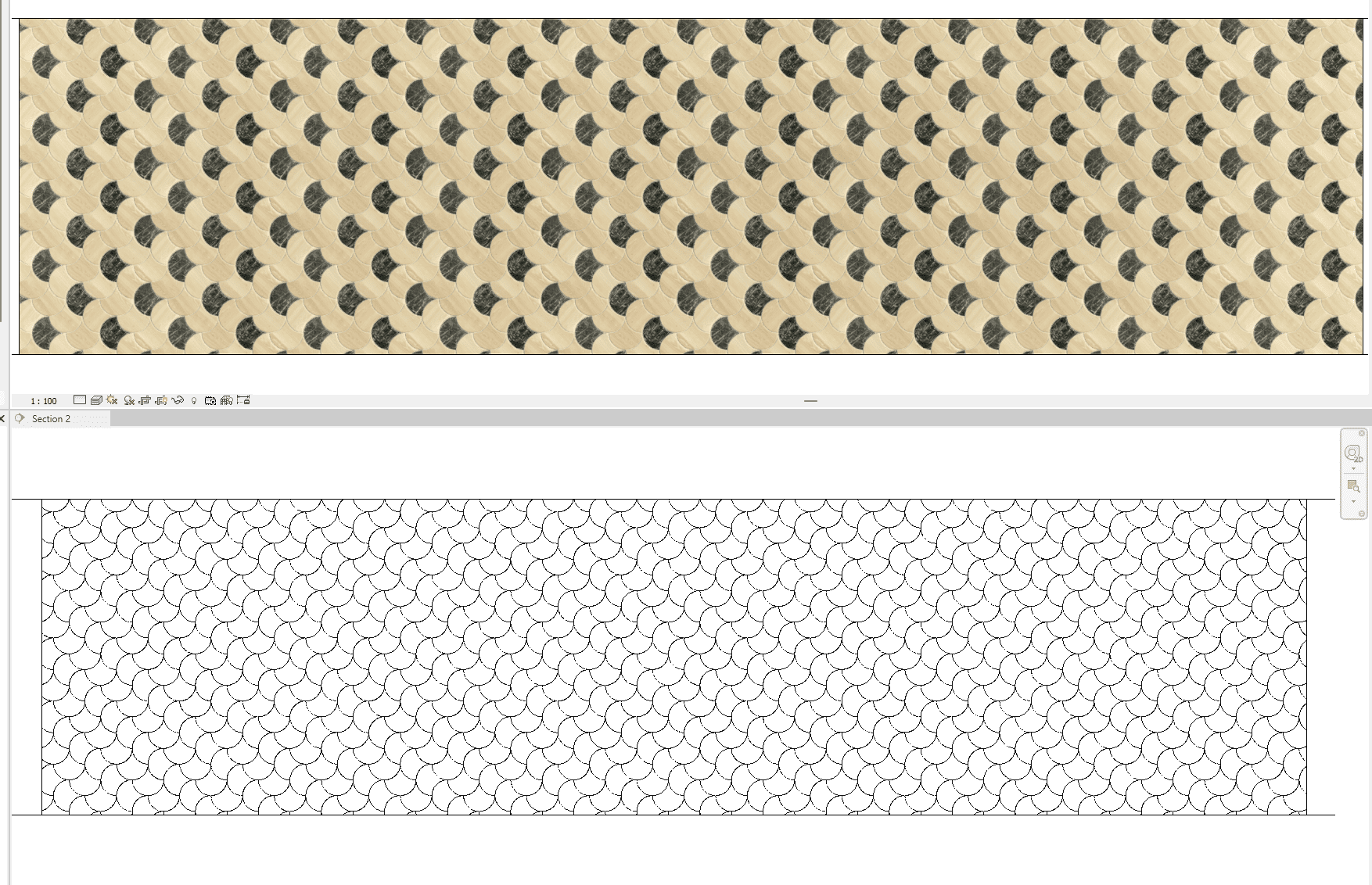
Comparison of a colorful fish scale texture pattern above and its corresponding black and white hatch pattern below in a design software interface.
Hatch automatically generates for patterned textures.

Architextures is more than just a texture library

Architextures is more than just a texture library; it’s a comprehensive solution aimed at boosting creativity, improving efficiency, and fostering collaboration within the design process. With Architextures, designers are equipped to unlock their full potential, making it a must-have in the toolkit of every architect and designer.

Navisworks: Revolutionizing Quantity Surveyors’ World!

Autodesk Navisworks’ Quantification Tool is a multifaceted addition to the quantity surveyor’s toolkit. While it demands a bit of tech-savvy and investment, the rewards in precision, efficiency, and collaboration are well worth it.

Introduction

Welcome, Quantity Surveyors! Today, we’re exploring the world of Autodesk Navisworks, focusing on its Quantification Tool. We’ll also highlight three YouTube tutorials that can turn you from a novice into a ninja.

Pro: Precision Meets 3D

Navisworks’ Quantification Tool is like having x-ray vision for measurements. You can measure quantities directly from 3D models, making the days of puzzling over 2D plans feel as outdated as using a sundial. 

Navisworks Training: Custom Catalog & Visual Takeoff Check for Quantity Surveyors


Con: The Tech Hurdle

Embracing Navisworks might feel like learning to drive a spaceship when you’re used to a bicycle. It’s a shift, especially for those cozy with traditional methods. But don’t fret, “A Really Simple Quantification Setup in Navisworks” is here to make this transition smoother than your morning coffee.


A Really Simple Quantification Setup in Navisworks


Pro: Clash Detection – Your Project’s Sixth Sense

Navisworks’ clash detection is like having a sixth sense for potential design conflicts. Imagine it as a friendly ghost whispering in your ear, alerting you to any design missteps before they become real headaches. This foresight is invaluable, saving time and preventing costly reworks.

Con: The Need for Speed (and Space)

This tool is a bit of a diva when it comes to system requirements. If your computer is still living in the dial-up era, you might find Navisworks more sluggish than a Monday morning. Consider this a nudge to embrace the future with a hardware upgrade.

Pro: Collaboration Made Easy

Collaboration is a smooth dance rather than a clumsy tug-of-war. It allows multiple stakeholders to contribute and review in a shared digital space. “Navisworks – Essential Skills for Quantity Surveyors” can be your guide to mastering this dance.


Navisworks - Essential Skills for Quantity Surveyors"


Conclusion: A Tool of Many Talents

Autodesk Navisworks’ Quantification Tool is a multifaceted addition to the quantity surveyor’s toolkit. While it demands a bit of tech-savvy and investment, the rewards in precision, efficiency, and collaboration are well worth it. With the right approach and resources like the mentioned YouTube videos, you’ll soon be navigating this software like a pro. Happy quantifying! 

CHANGE YOUR BUSINESS IN 2 MINUTES

“We understand that the one tool isn’t right for everybody, and it’s really important to keep abreast of all of the new technologies in the new software, that can help businesses work as efficiently as they possibly can and give them insight to their projects and staff skills.”

Guy Smithers (Director – Viewlistic)

The Architecture and Construction Industry: A Balancing Act

The architecture and construction (AEC) industry is a complex and ever-changing landscape. Architects and construction professionals are constantly juggling a variety of challenges, including:

  • Personnel: Finding and retaining qualified employees is a major challenge for many AEC firms. The industry is facing a shortage of skilled workers, and the competition for talent is fierce.
  • New and changing skillsets: Technology is rapidly transforming the AEC industry, and professionals need to be able to adapt to new skills and technologies in order to stay ahead of the curve.
  • Financial: AEC projects can be very expensive, and managing costs effectively is critical. Firms also need to be able to deal with unexpected financial challenges, such as material shortages or delays.
  • Infrastructure: AEC firms rely on a variety of infrastructure, both internal and cloud-based. Ensuring that this infrastructure is reliable and secure is essential for smooth operations.
  • Hardware and software: AEC firms use a variety of hardware and software to design, build, and manage projects. Keeping this technology up-to-date and secure can be costly and time-consuming.
  • Client expectations: Clients expect AEC firms to deliver high-quality projects on time and within budget. Meeting these expectations can be challenging, especially in complex and demanding projects.
  • Competition: The AEC industry is highly competitive. Firms need to be able to differentiate themselves from their competitors and offer clients a unique value proposition.
  • The future of the AEC industry: The AEC industry is being shaped by a number of emerging trends, such as sustainability, digitalization, and automation. Firms need to be able to adapt to these trends in order to remain competitive and successful.

Why You Need a Discovery Session

A discovery session is a great way to learn more about the challenges facing your AEC firm and to develop a plan to address them. During a discovery session, you will have the opportunity to discuss your specific needs and goals with an experienced consultant. The consultant will then work with you to develop a customized plan that will help you achieve your objectives.

Conclusion

The AEC industry is a complex and challenging one, but it is also an exciting and rewarding one. By understanding the challenges facing the industry and by developing a plan to address them, AEC firms can position themselves for success.

"Talking with clients about the tools that they're using in their workflows, we always look at the best tool for them. We understand that the one tool isn't right for everybody, and it's really important to keep abreast of all of the new technologies in the new software, that can help businesses work as efficiently as they possibly can and give them insight to their projects and staff skills."

Watch Guy Smithers (Director – Viewlistic), Joe Keogh (Director – Viewlistic), and Nick Lukas (Director – Architecton) reveal some of the challenges facing the architecture and construction industry below.

Streamline BIM Project Management

With a cloud-based solution like BIM Collab Pro, you’ll never have to worry about version control again. It’s like magic! And no more trying to remember which local drive or server you saved the latest version of the project to.

Are you tired of handling your Autodesk Revit designs using traditional methods that involve local servers and hard drives? Using a cloud-based tool like BIM Collab Pro can be a game-changer! Moving your data to the cloud frees you from manual data merging and version control hassles, while also enabling your team members to collaborate on the same project regardless of their geographical location. Furthermore, your data is safe and protected with BIM Collab Pro. By shifting to a cloud-based solution, you can save a considerable amount on server upgrades and maintenance costs. You only pay for what you use! With BIM Collab Pro, you can say goodbye to version control and file sharing issues that lead to wasted time and effort, and increase your team’s efficiency and productivity. Remember to secure your files with timely backups to avoid data loss. Try BIM Collab Pro and experience the benefits of a cloud-based solution today!

Managing Versions on BIM Collab Pro

Comparing Versions: 3 Ways

Better Markup Tools in BIM Collab Pro

These Markup tools provide a quick and efficient way to communicate design intent, coordinate changes, and track project progress. Whether you’re an architect, engineer, contractor, or owner, the benefits of these tools are clear: they streamline your workflow, reduce errors and rework, and ultimately help you deliver projects faster and with greater accuracy.

Autodesk BIM Collab Pro has a set of Markup tools that will change the way teams collaborate on BIM projects. These tools allow for easier and a direct way to mark up 2D and 3D models with annotations, measurements, and comments, without the need for any additional external software.

The Markup tools provide a quick and efficient way to communicate design intent, coordinate changes, and track project progress. Whether you’re an architect, engineer, contractor, or owner, the benefits of these tools are clear.

The Markup tools make it easier to collaborate with team members, without the need to switch between multiple software applications.

Overall, Autodesk BIM Collab Pro’s Markup tools provide a significant benefit to project teams, enabling them to streamline collaboration, enhance communication, and increase accuracy. By using these tools, teams can ensure that everyone is working towards the same goals, reducing the potential for delays or errors, and ultimately delivering projects faster and with greater accuracy.

In conclusion, if you’re looking to enhance your collaboration and communication on BIM projects, Autodesk BIM Collab Pro’s Markup tools provide an efficient, effective, and user-friendly way to do so. Give them a try and experience the power of streamlined collaboration firsthand!

How to Survive Supply Chain Shortage

More than ever Architectural Practices have to consider supply chain shortages in skills and materials. This impact is enormous when viewed in the light of planning issues, extended time frames and costs overruns.

Building in a Post-COVID World: Adapting to Material and Skill Shortages

The COVID-19 pandemic has had a ripple effect on industries worldwide, and the architecture, engineering, and construction (AEC) industry is no exception. One of the biggest challenges we’re facing is a shortage of skilled workers and materials. This can be a real headache for architects who have designed their projects around specific products or skill sets.

Imagine this: you’ve meticulously planned and documented your project, only to find that the materials or expertise you need are suddenly unavailable. This can lead to delays, cost overruns, and a whole lot of frustration. It’s like ordering a gourmet pizza and getting a plain cheese one instead.

One of the tricky issues that can arise is a change in wall thickness. This might not sound like a big deal, but it can actually affect the overall size of your building. That means you might have to go back to the drawing board to make sure your design still complies with planning regulations.

So, what’s the solution? We believe it’s all about planning for the unexpected. When designing a building, it’s important to consider the possibility that certain materials or skills might not be available when construction time comes. One way to do this is to create “flex zones” in your design. For example, you could allow for external “wall zones” that can accommodate changes in wall thickness without affecting the overall layout of your building.

By thinking ahead and planning for flexibility, we can minimize the impact of these shortages and keep our projects on track. After all, in a world where change is the only constant, adaptability is the key to success.

HOW TO SURVIVE SUPPLY CHAIN SHORTAGE

More than ever in our architectural practice, we have to consider the issue of supply chain shortages both in skills and materials. The impact is enormous when considering planning issues, extended time frames and financial costs

ACTUALLY STARTING PLANNING

Joe Keogh, Director of Viewlistic, on the importance of planning and anticipating changes in your Revit project, but also for supply chain shortages becoming a real and frequent occurrence.

WHAT YOU CAN DO

Revit & Supply Chain Shortage, what you can do about it. Advice from Nathan Fenn Design Technology Specialist

REVISION TRACKING WITH BIM COLLAB PRO

Did you know you can track revisions in BIM Collab Pro? And retrieve previous versions. Nathan Fenn explains.

Discovery Session – Nuts & Bolts

“we quickly realized that one day we would have to move into the big space, so the discovery session for us was a way of streamlining that process and making it simple and as efficient as possible. ”

Nick Lukas (Director – Architecton)

"Talking with clients about the tools that they're using in their workflows, we always look at the best tool for them. We understand that the one tool isn't right for everybody, ..."


Unveiling the Essentials: A Glimpse into Our Discovery Session

Embark on a journey to optimize your workflow and design technology needs with our insightful discovery session. Through a three-phase approach, we’ll delve into your aspirations, identify areas for improvement, and craft a roadmap tailored to your business goals.

Phase 1: Uncovering Your Aspirations

We begin by understanding your aspirations, the driving force behind your business objectives. This deep dive into your vision allows us to align our efforts with your desired outcomes.

Phase 2: Assessing Your Workflows

Next, we meticulously examine your existing workflows and processes, identifying strengths to leverage and areas ripe for enhancement. This comprehensive assessment ensures that we capture every aspect of your operations.

Phase 3: Charting Your Roadmap to Success

Armed with insights from the previous phases, we meticulously craft a roadmap that blends your unique needs with our AEC industry expertise. This roadmap serves as a guide to propel your business forward, addressing key aspects such as workflows, content, templates, infrastructure, hardware, software, and skills training.

Phase 4: Implementing Your Personalized Strategy

In the final phase, we collaborate closely with you to review and implement the roadmap. Your involvement is paramount as we translate the roadmap into tangible actions, ensuring a seamless and successful execution.

Embrace Clarity and Embark on a Path of Progress

Our discovery session is designed to provide clarity and direction, empowering you to optimize your workflow and design technology needs. Through a collaborative approach, we’ll guide you towards achieving your business aspirations.


Also watch out for Part 1 of Reasons Why You Need Discovery

Digging deeper into the delivery session with Nick Lukas (Director – Architecton), Guy Smithers (Director – Viewlistic) and Joe Keogh (Director – Viewlistic)

Manage Multiple Revit Files

Drawing Manager from RTV Tools may take away some of your pain.

RTV Tools is best known for its RTV Exporter for dealing with weekly document deliverables, allowing your to save presets for Sheets so it becomes a one button exercise (after your visual check). There are many other hidden gems in this Revit Plugin. 

If you have worked long enough on any project with Revit as your main modelling tool, there will be times when you wished some of these mind numbing tasks would just go away. Don’t you wish you could manage all your drawing sheets, your revisions, and transmittals in one place?

Drawing Manager from RTV Tools may take away some of your pain.

RTV Tools is best known for its RTV Exporter for dealing with weekly document deliverables, allowing your to save presets for Sheets so it becomes a one button exercise (after your visual check). There are many other hidden gems in this Revit Plugin. 

RTV Tools Drawing Manager can help streamline managing multiple Revit project files in one location. 

At it’s core is an SQL Database which adds a layer of “protection?” to the Revit database. You will need to Sync with the Revit Project file to commit changes made in Drawing Manager. Which is not a bad thing, allowing for some flexibility for reversing unintentional mistakes.

The other neat tools includes: Long complex numbering systems (which are unavoidable for infrastructure projects, health projects and defense projects..) Revision requirements for construction (with history reports) and Transmittals (that lets you work with complex numbering systems. To name a few.  If you find this is the space you are in why not have a chat with us.

Wish I could do that!
Manage multiple Revit files in one place.

Control Site Data with RECAP PRO

Our video blog looks at pointclouds for existing conditions and context survey. We look at some of the benefits in using pointclouds as part of your workflow.

The good (comforting?) news is that your AEC Collection includes RECAP PRO.

More and more we find ourselves working on projects where the fees are tight and the time frame for completing tasks shorter. So any tool that comes along and offers some modicum of hope is gladly received.  Hello Recap Pro!

Our video blog looks at pointclouds for existing conditions and context survey. We look at some of the benefits of using pointclouds as part of your workflow.

The good (comforting?) news is that your AEC Collection includes RECAP PRO. 

RECAP PRO has a number of functionalities that will help in the use of pointclouds. 

Asides from the ability to stitch together multiple scan files, multiple drone photograghs; RECAP PRO can be used to reduce the points per inch of your scan file, thus reducing file size and making it manageable for use in your work flow.

Or contact Guy Smithers, Joe Keogh or John Young at Viewlistic.com.au

We are happy to help.


AEC Collection: Control your Site Data with RECAP PRO

We look at the benefits of using pointclouds for existing conditions modelling. With RECAP PRO as part of your AEC Collection, it would be a missed opportunity not to use it as part of your workflow.

For more on RECAP PRO 2022 visit the following site: Introducing ReCap Pro 2022 – ReCap Blog (autodesk.com)

Revit Survey Levels: 4 easy steps

Moving from Autocad to Revit, this and the previous tutorial (Survey Files in Revit in 4 easy steps) is for you.

Survey Levels in Revit in 4 easy steps.

If you are moving from Autocad to Revit, this is for you. (refer previous tutorial Survey Files in Revit in 4 easy steps)

This is the second of a series of tutorials to help you setup your Revit Projects quickly and painlessly; allowing you to work (or display) between Project Levels and Survey Levels.

During Sketch Design phase, detail or feature survey information are seldom available. In this phase we work with project based (Revit Terminology) levels. The numbers are smaller and easier to comprehend.

Come Design Development phase, we receive more detail survey information. We now have Planning requirements. In this phase we set up levels in Revit to show survey levels, while retaining project levels.

Learn to set up levels, using the Relocate Project tool in the Manage tab. 

If you need further explanation about the above method, please do not hesitate to contact us.

Survey Levels in Revit in 4 easy steps.

An easy way to set up Survey Levels in Revit without compromising Project Base Levels.

Survey Setup: 4 easy steps

This method will be handy for medium to smaller practices where you don’t have a BIM Manager or Design Technology Lead to rely on.

Finally a Survey Setup in Revit in 4 easy steps.

This is the first of a series of tutorials to help you setup your Revit Projects quickly and painlessly. You do not have to modify the Survey files but you do need to check the units used by your Survey. The units tend to be in meters but it’s good to check. The other issue is deciding on where the project origin point is. You may have already selected a point in your Project. But if you haven’t we recommend using the bottom left hand corner of your site, this is a good practice for the benefit of your team member who will be using Dynamo (for now) for any programming done to your project. That is any coordinates they work  with will have positive numbers (don’t think it’s critical but certainly will make it easier).

This method will be handy for medium to smaller practices where you don’t have a BIM Manager or Design Technology Lead to rely on.

The final result is a Revit Project File with Shared Coordinates with the Survey File. This is also a Mapping Grid coordinate. Which will help when working with Point Cloud surveys or updates to feature survey files.

If you are unclear about any of the steps mentioned in the Video, please do not hesitate to contact us.

Survey Setup in Revit in 4 easy steps.

No modification to Survey files from Surveyor required. The final result is a Revit Project File with Shared Coordinates with the Survey File. This is also a Mapping Grid coordinate, which has big implications down the track.

Architectural Workflow with Civil 3D

Reasons for this:

Civil 3D has better tools for generating Roads and Footpaths.

The roads and footpaths are better integrated into the surface model.

Autodesk Civil 3D

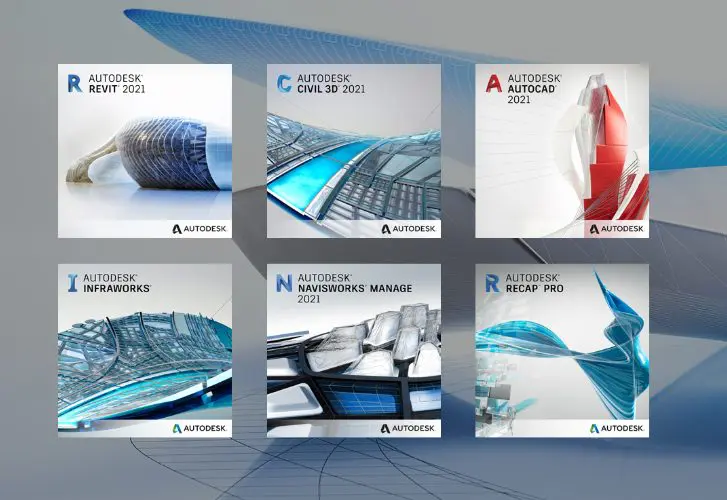
In our last video on the AEC collection, we spotlighted six out of 17 software packages, highlighting Revit, Civil 3D, AutoCad, Infraworks, Navisworks Manage, and Recap Pro.

Consider adopting this workflow:

Start with Infraworks for the contextual model, move to Civil 3D for site works, and then use Revit Architecture, Structural, and MEP for building the model. You then integrate these into Navisworks for review. Building contractors employ this method for construction and model reviews as part of the BIM workflow.

For a more hands-on connection between the building and site models, Civil 3D manages the site model right from the start. This allows you to engage with a Points Database or Survey file. With Autodesk’s BIM 360, your workflow simplifies with fewer steps.

Civil 3D can generate your surface model, which you can then link to Revit using the ‘import toposurface’ option from the import files ribbon. A tool for managing shared coordinates between the two programs also exists, typically overseen by Design Technology or BIM managers for project and site setups.

For roads and footpaths, create a line in Revit to mark the location and scope, export it to Civil 3D for generation, and then reintegrate it into Revit.

Why do this?

Civil 3D offers superior tools for creating roads and footpaths, integrating them more seamlessly into the surface model. Revit lacks a comprehensive set of tools for topography modeling, particularly for neatly crafting roads and paths.

Amid the construction industry’s high-pressure environment, we constantly seek more streamlined methods.

To explore this method, ensure you have:

  • The AEC Collection,
  • A BIM 360 account (trial available),
  • The Autodesk Desktop Connector (complimentary from Autodesk) to bridge Revit and Civil 3D.

We suggest studying Eric Chappell’s Autodesk Civil 3D 2021 Essentials on LinkedIn Learning for a deeper dive.

For more inquiries, don’t hesitate to contact us.

Architectural Workflow with Civil 3D

A look at how Civil 3D can be part of your Architectural workflow. Architects need the modelled context for their buildings. Often Civil engineers and landscape architects only provide 2D context. Architects then must model this data themselves. Civil 3D will make modelling this context so much easier and with AEC Collections those tools are included. 

AEC Collection: Not just Revit & AutoCAD

Aimed at the Architecture Engineering and Construction (AEC) industry, this collection includes 17 programs, an interesting array of tools to support the current crop of  practices adapt to emerging modes of digital delivery.

Lately Autodesk is encouraging existing and new users of Revit and AutoCAD to  subscribe or upgrade to their flagship  AEC Collection. Aimed at the Architecture Engineering and Construction (AEC) industry, this collection includes 17 programs, an interesting array of tools to support the current crop of  practices adapt to emerging modes of digital delivery. The major ones (asides from Revit and AutoCAD) include Civil 3D, InfraWorks, Recap Pro, Navisworks, 3ds Max, Formit Pro.

This first video attempts to look at 6 of the 17 programs, giving a small glimpse into their uses.

A goal of Autodesk is to help their customers move from traditional project delivery to the emerging digital delivery workflows, what we call BIM (Building Information Modeling). A big part of Autodesk’s Future of Making Things roadmap.

In our subsequent video we will be discussing what the other 11 programs can help you with these workflows.


AEC Collection: It’s not just Revit & AutoCAD

For those who purchased the AEC Collection and are not clear about what’s included, this is a brief introduction to 6 of the 17 programs  in the collection.